Order History explains what happened after an order left the active view. Use it to review ended outcomes and connect an order with its fills, instructions, and final state.
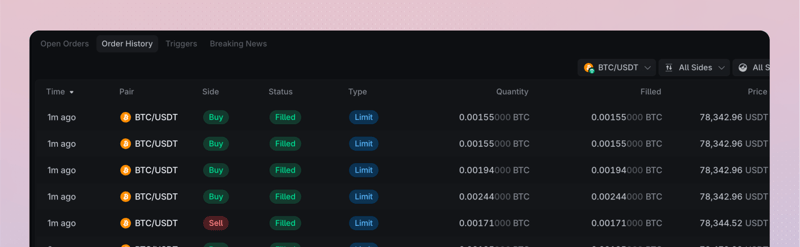
What the widget shows
The table can be filtered by Pair, side, and status. Its available columns include order time, Pair, side, type, status, quantity, filled amount, average price, limit price, time in force, and order identifiers.
| Status | What it means |
|---|---|
| Filled | No order quantity remains after completed matches |
| Canceled | The remaining eligible quantity was canceled |
| Expired | The instruction ended under its time or product rule |
| Rejected | The order did not become active as intended |
Status alone is not the whole result. An order can fill partially before its remainder is canceled, so compare the current accepted total quantity, filled amount, and final state together.
Trace an order
Open the row details and keep the order ID or client order ID when one is available. Compare the submitted instructions, fills, final status, fees, and resulting balance changes.
After a connection gap, the read view can take a moment to reconcile. Refresh the row and preserve its identifiers before escalating an apparent mismatch.