The Polyester Trading Screen brings live market data, order entry, private account activity, and balances into one customizable workspace. Choose your chart, personalize its appearance, and arrange every panel around the way you trade.
Open the Trading Screen to choose a market and arrange the workspace around the information you use most.
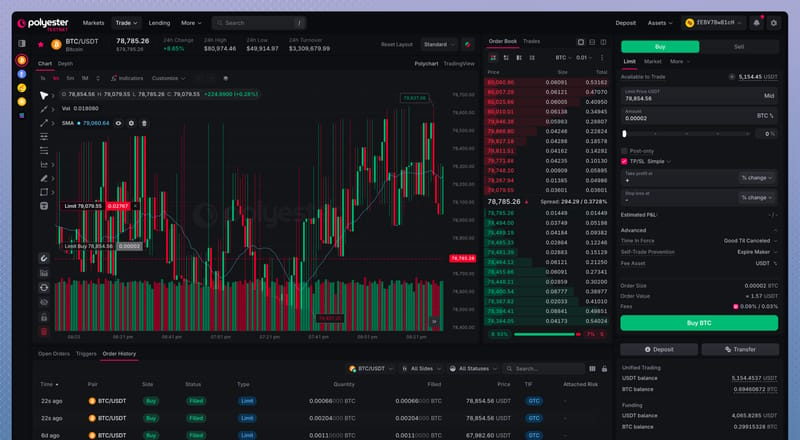 Trading Screen USDT/BTC pair
Public market data and private account data
The Trading Screen keeps public market information and private account activity together without combining their visibility.
| Screen area | Visibility | What it shows |
|---|---|---|
| Charts, Depth Chart, Order Book, and Market Trades | Public market data | Price history, aggregated liquidity, and completed market-level trades |
| Open Orders, Order History, Triggers, and Funds | Private account data | Your attributed orders, fills, balances, reservations, and history |
The Order Form connects both contexts. It uses the selected Pair's market rules and the active account's available balance and permissions.
Market Trades is not your personal trade history. It shows completed public executions without identifying the accounts behind them. Use Order History and fill details for activity attributed to your account.
Personalize
Personalize is one of the core features of Polyester. We keep adding layout, chart, and panel options, and more will come. Feel free to send feedback or a feature request.
Pick a layout, choose a chart, and arrange the panels around the way you trade.
Standard and Advanced layouts
Use Trading Layout in the market header to switch between Standard and Advanced.
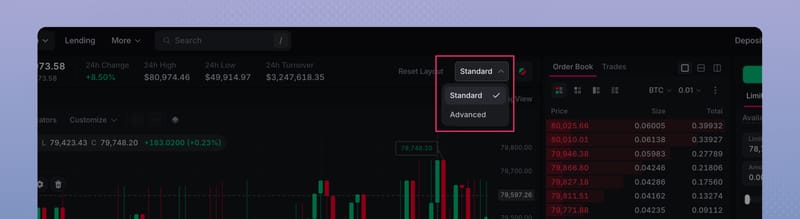 Choose Standard or Advanced from Trading Layout
Standard keeps chart, Order Book, Order Form, and orders in a fixed arrangement. You always know where each panel is. Resize panels and switch tabs without dragging widgets around.
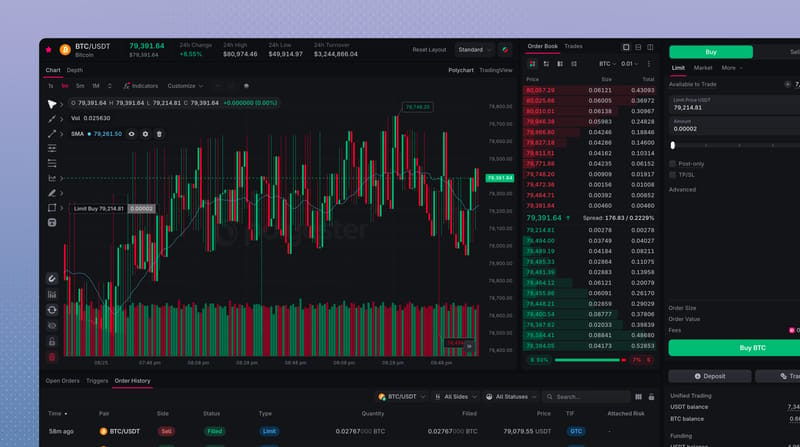
Standard layout features
- Fixed arrangement: panels stay in place so you always know where each one is
- Resizable panels: drag a panel edge to change its width or height
- Prefilled tabs: Standard already groups these widgets so you switch tabs instead of dragging:
- Chart and Depth: switch Polyester Chart or TradingView with Depth Chart
- Order Book and Trades: switch Order Book and Trades in one panel. Order Book also has Tabbed, Stacked, and Side by side
- Limit and Market: use the Order Form tabs for Limit, Market, and More
- Open Orders, Triggers, and Order History: switch Open Orders, Triggers, and Order History
- Funds: stays on the same screen as the form
Advanced lets each widget become a panel you can drag, resize, float, or expand. Group widgets as tabs, then move a tab from one group to another when you want more control than Standard.
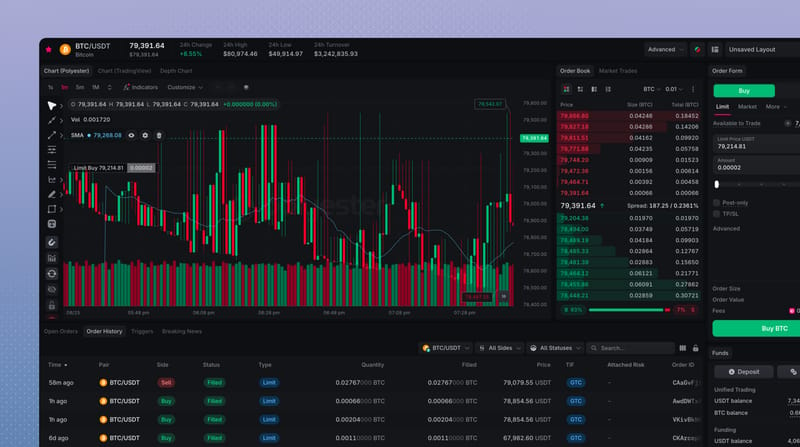
Advanced layout Features
- Draggable: drag a panel or tab to a new place
- Resizable: drag edges to change width and height
- Floating widgets: use Float panel to pull a group out of the grid
- Maximize View: expand a group to fill the workspace, then restore it
- Move one tab to another: drag a tab into a different group to combine or split panels
- Widgets: Collection of widgets that can be added to the screen
Trading chart
Choose Polyester Chart, the native chart built in-house, or TradingView Chart. Both display Polyester market data, so you can use the charting experience that best fits the way you analyze a market.
- Polyester Chart: use Polyester's native chart for candles, volume, indicators, and drawings
- TradingView Chart: use TradingView Advanced Charts with its indicators, drawing tools, and chart controls
Customize the chart's theme and appearance, then keep the chart beside the market data and order controls you use with it. You can also place both charts in one tab group and switch between them without rebuilding the rest of your workspace.
Polyester Chart Learn the native chart's candles, indicators, and drawing tools. TradingView Chart Learn the TradingView Advanced Charts widget and its controls.Customize your workspace
On Advanced, customize the display from Preset Layouts in the header. Switch a starting arrangement, then save your own layout.
Creating a new preset
Choose a preset layout
- Default Trading. A balanced view of charts, liquidity, order entry, activity, and Funds
- Compact View. More information in a tighter arrangement
- Chart Focused. More room for chart analysis
- Orderbook Focused. More room for visible liquidity and order entry
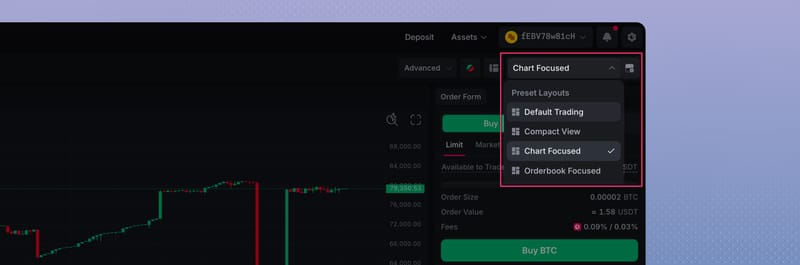 Choose a preset layout
Open the widgets you need
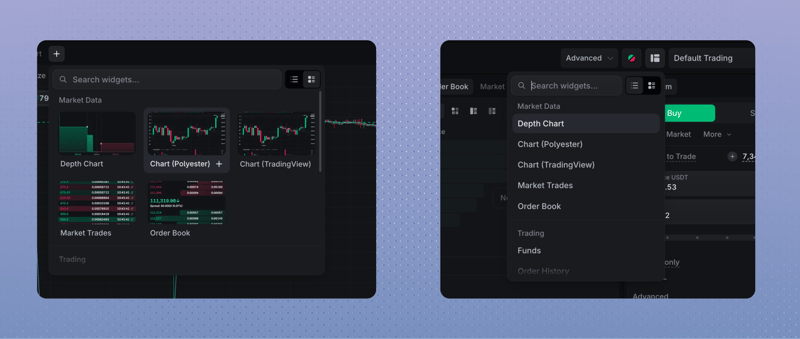
Resize and arrange the panels
Name and save your layout
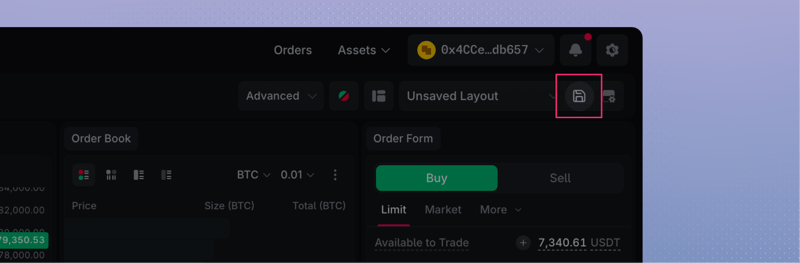 Click Save
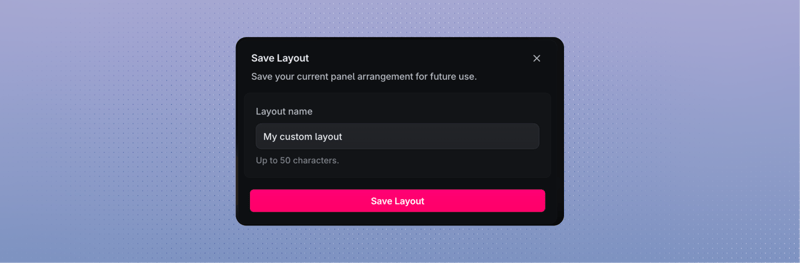 Name and save the layout
Remember
- Layout changes affect presentation only. They do not place, modify, cancel, or settle an order.
- Saved layouts stay in the current browser. They do not follow your account to another device.
- Clearing site data can remove saved layouts.