Internal transfers move an available balance without leaving Polyester. You can move assets between Funding and Unified Trading, between your Main Account and Subaccounts, or to another Polyester user.
Because both sides are Polyester accounts, an internal transfer does not use an external chain, deposit address, or Zipper route fee. Open the Transfer page to get started.
Make an internal transfer
Open Transfer from the account that holds the balance. Choose a tab, then set the source, destination, Asset, and amount.
Use this when both sides belong to you.
Choose From
Select the sending account and Funding or Unified Trading. The form shows the available balance for that source.
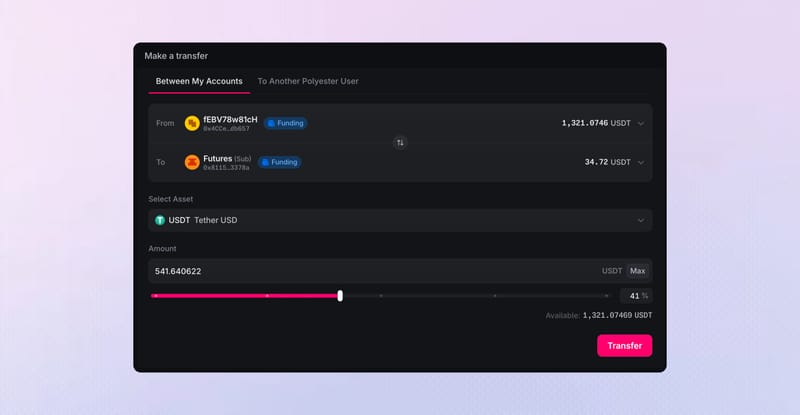 Transferring 541.64 USDT from Main Funding to Futures Funding
Choose To
Select your Main Account or a Subaccount as the destination. Then choose Funding or Unified Trading for that account. From and To each have their own account and balance area. Use the swap control if you want to reverse the direction.
Choose the Asset and amount
Select the Asset, then enter the amount, use Max, or move the percentage slider. Stay within the available balance shown under the slider.
Review and confirm
Compare From, To, Asset, and amount. Then approve the request in the connected wallet.
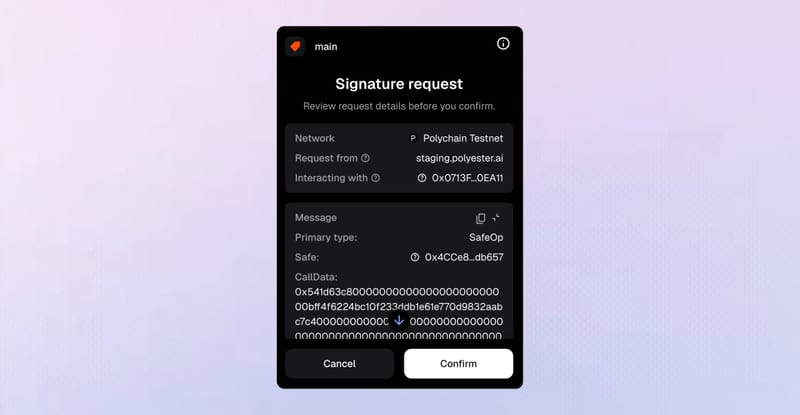 Using the wallet to confirm the internal transfer
Confirm the completed transfer
When Ledger Settlement Confirmed completes, check the transferred amount and both balances.
USDT Transfer
Completed

Started
Funding
0x4cce…b657
Funding
0x8115…378a
Use this when the receiving Main Account or Subaccount belongs to someone else.
Choose From
Select the sending account and Funding or Unified Trading. The form shows the available balance for that source.
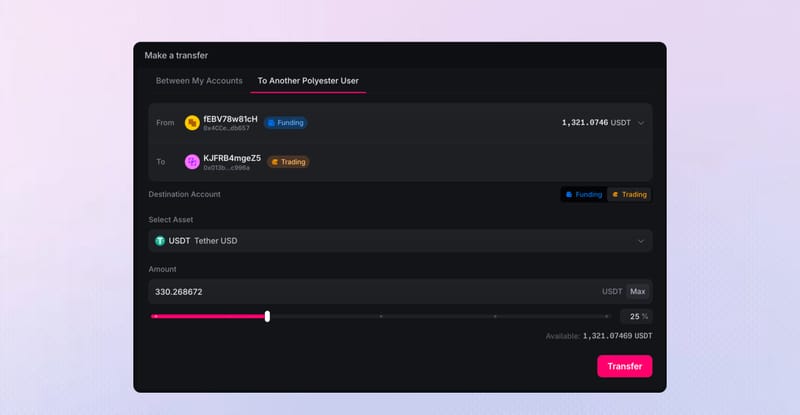 Transferring 330.27 USDT to another Polyester user's Trading balance
Find the recipient
Search by username, account ID, or smart-account address. Compare the resolved label, account type, and complete address with information from the recipient.
Choose Destination Account
Set the recipient's destination to Funding or Trading. This chooses where their Unified Asset becomes available.
Choose the Asset and amount
Select the Asset, then enter the amount, use Max, or move the percentage slider. Stay within the available balance shown under the slider.
Review and confirm
Compare From, To, Destination Account, Asset, and amount. Then approve the request in the connected wallet.
Using the wallet to confirm the internal transfer
Confirm the completed transfer
When Ledger Settlement Confirmed completes, check the transferred amount and both balances.
USDT Transfer
Completed Started
Funding
0x4cce…b657
Funding
0x8115…378a
What happens after you submit
Submitting the request begins the Transfer Flow. Polyester then moves it through two stages:
Transfer Observed
Polyester records the internal movement between the selected accounts and balance areas.
Ledger Settlement Confirmed
The Unified Asset leaves the source Available Balance and appears at the destination. There is no Zipper route fee.
You can see more details on Polyester Scan.
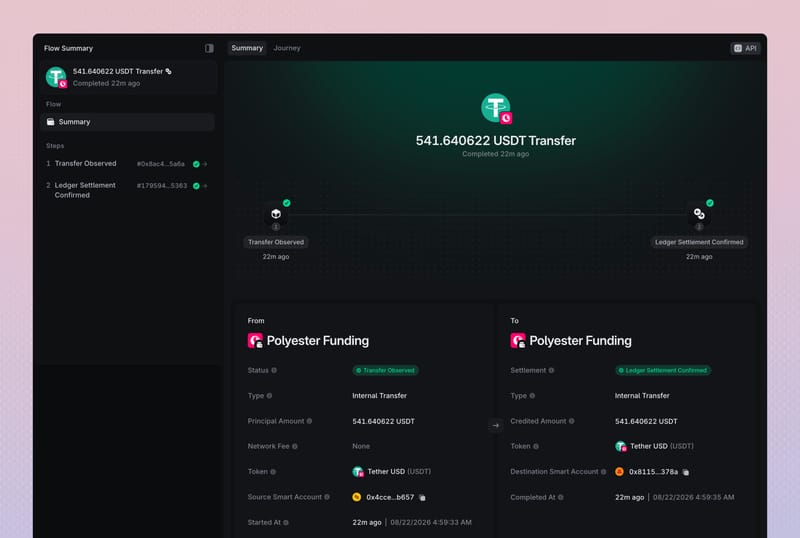 Viewing a completed 541.64 USDT Transfer Flow on Polyester Scan
Funding and Unified Trading transfer routes
Every side of an internal transfer identifies both a Polyester account and a balance area. Moving between Funding and Unified Trading changes where the balance can be used. Moving between a Main Account and Subaccount changes which account owns it.
| FromTo | Result |
|---|---|
| FundingFunding | Moves an available Funding balance to the destination account's Funding balance |
| FundingUnified Trading | Makes an available Funding balance available in the destination account's Trading balance |
| Unified TradingFunding | Moves an available, unreserved Trading balance to the destination account's Funding balance |
| Unified TradingUnified Trading | Moves an available Trading balance to the destination account's Trading balance |
Funding transfers use the available Funding balance. Unified Trading transfers use Available Balance, so open orders and other pending actions can reduce the amount you can move.
Track the transfer
Transfer submitted means Polyester accepted the request. Transfer History is the primary record and shows the time, amount, asset, source, destination, Flow ID, and current status.
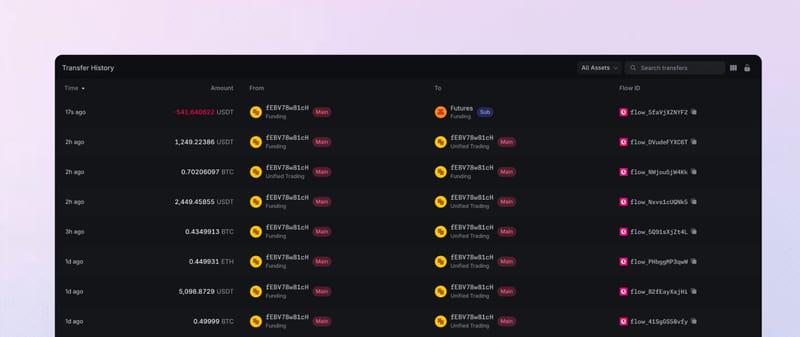 Viewing Transfer History after a 541.64 USDT internal transfer
Follow the same history record until it reaches a final state and both balances reflect the movement. Do not submit a second transfer while the first result is still unclear.
Some internal transfers include public Polyester Chain evidence, while others are private balance movements. A missing public Scan record does not mean the internal transfer did not occur; use Transfer History as the account record.
Internal Address Book and Transfer Whitelist
An Address Book entry saves another Polyester account so it is easier to find again. Saving a recipient does not automatically authorize transfers to that account.
If the source account requires the Internal Transfer Whitelist, the recipient must also have an active whitelist record for that source. Each Main Account and Subaccount has its own saved entries and transfer controls.
FAQ
No. A disabled Subaccount rejects new inbound activity until it is active again. Learn about internal transfers.
‘Between My Accounts’ moves funds between your Main Accounts, your Subaccounts, and Subaccounts you are a member of, where your permissions allow. ‘To Another Polyester User’ sends funds to a Polyester account resolved from a username, account ID, or smart account address.
No. If you are expecting an incoming internal transfer, the funds will arrive in your Funding Account or Unified Trading Account without any further action from you. Learn about internal transfers.
The recipient's Ledger can show the sending Polyester Account ID or Subaccount ID, its public smart-account address, and the sender's configured username or account label. Learn about internal transfers.