The Subaccounts page shows every Subaccount you own or have permission to use. From one place, you can create accounts, switch between them, move assets, manage access, and update each account's status.
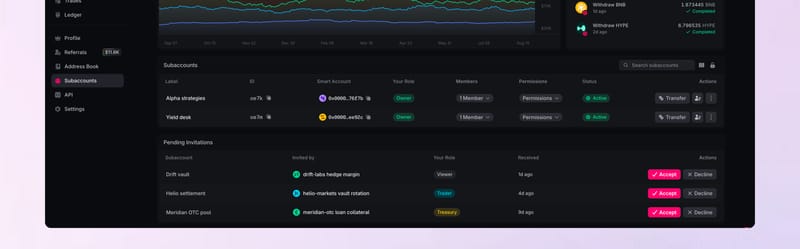
Pending invitations appear on the same page. Accept or decline them before they become Subaccounts you can use.
Create a Subaccount
Open Subaccounts
Open the Subaccounts page from your Main Account and select Create Subaccount.
Choose a label
Enter a Label that describes the account's purpose, such as a strategy, team, or automated workload.

Create it
Select Create Subaccount. Polyester gives the new account its own account ID and smart account address.
Set it up
Add permissions, members, API keys, and assets based on how you plan to use the account.
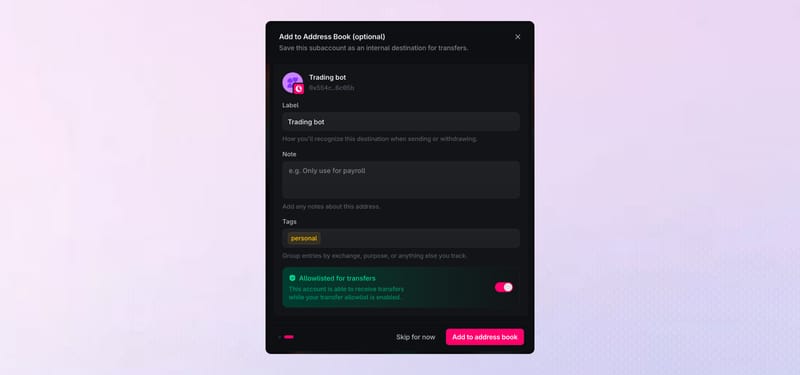
You can also save the Subaccount to your Address Book for faster internal transfers, or select Skip for now.
Switch between accounts
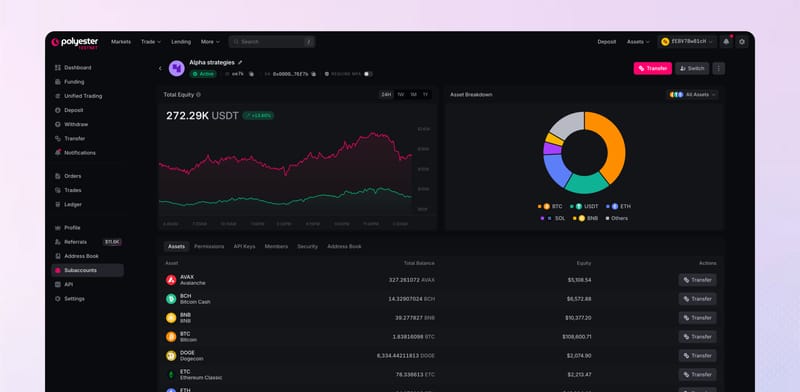
Select Switch to make a Subaccount your active account. Polyester then shows that account's balances, orders, settings, and available actions across the product.
The account selector always shows which account you are currently using.
Add or move assets
Use Internal Transfers to move assets between your Main Account and Subaccounts or between two Subaccounts. To deposit directly into a Subaccount, switch to it so it is the active account, then open the Deposit page. Based on the Subaccount's Default Deposit Destination setting, Polyester credits the completed deposit to its Funding Account or Unified Trading Account.
Disable, reactivate, or leave a Subaccount
An Owner can change a Subaccount from Active to Disabled to stop new activity and return it to Active later. A member can leave a shared Subaccount when they no longer need access.