Your Address Book saves external wallet addresses and Polyester accounts you use regularly. Whitelists add another layer of protection by limiting where your account can send funds.
Each Main Account and Subaccount has its own Address Book and whitelist settings.
Save external and internal destinations
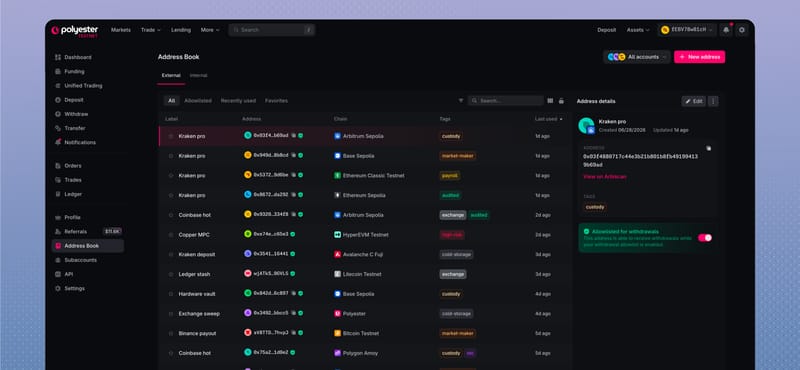
Save a wallet or contract address on a supported external chain. Each entry includes its chain, complete address, label, and any optional notes or tags you add.
An Ethereum address and a Solana address are different destinations, even when they belong to the same person.
Save another Polyester account for transfers inside Polyester. The entry connects a friendly label to the account identity used by the transfer page.
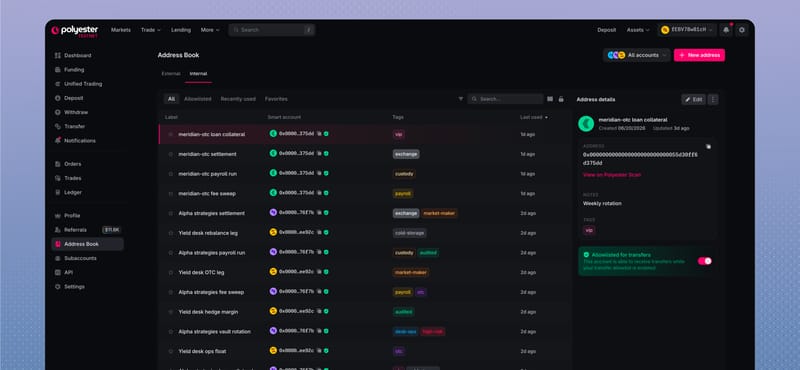
Favorites, recent destinations, tags, and chain filters help you find an entry. They do not change its security permissions.
Add a destination
Choose the account
Select the Main Account or Subaccount that should save the entry.
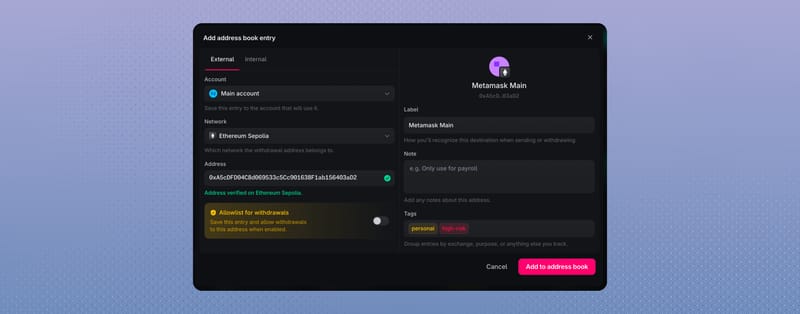
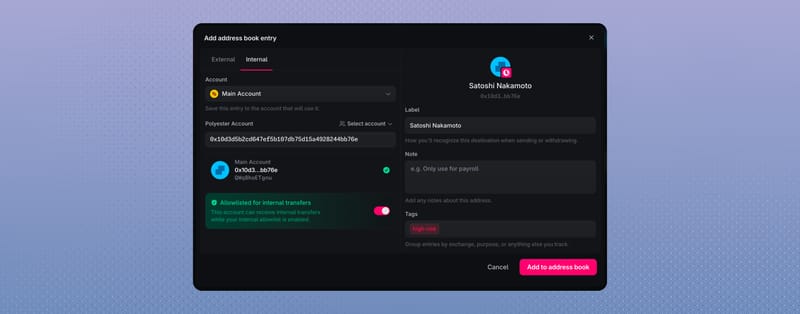
Choose External or Internal
External is for an address on another chain. Internal is for another Polyester account.
Enter and verify the destination
For an external entry, choose the chain and paste the complete address. For an internal entry, select the intended Polyester account. Compare it with a trusted source before continuing.
Name and save it
Add a clear label and optional tags or notes, then save the entry.
How whitelists protect your account
Open Withdraw. Polyester checks the External Withdrawal Whitelist first. If the destination is allowed, or the whitelist is off, MFA is next when it is enrolled. Then you approve in the wallet.
Whitelist is on. Entering an address or picking one from the address book that is not whitelisted blocks the withdrawal. A whitelisted address book entry continues to MFA, then wallet, then proceeds.
Polyester provides two separate controls:
- External Withdrawal Whitelist limits withdrawals to approved external addresses.
- Internal Transfer Whitelist limits internal transfers to approved Polyester accounts.
Saving an Address Book entry does not automatically whitelist it. Add it to the appropriate whitelist when you want it approved for a protected movement.
Whitelist settings apply only to the selected Main Account or Subaccount. Turn them on separately for every account you want protected.
Change a whitelist
- Open Security or the relevant Address Book destination.
- Choose the account and the External or Internal whitelist.
- Add or remove the intended destination, or turn the requirement on or off.
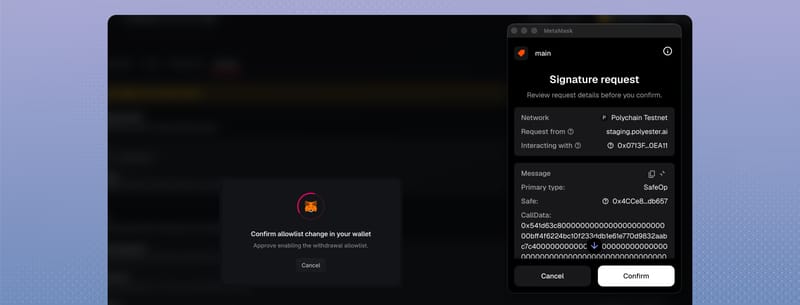
- Complete the requested MFA, GuardSigner, and wallet approval.
- Wait for the destination's whitelist status to update before moving funds.
Adding or removing an approved destination and turning a whitelist off are sensitive actions. Polyester uses fresh verification and GuardSigner to protect them.
GuardSigner
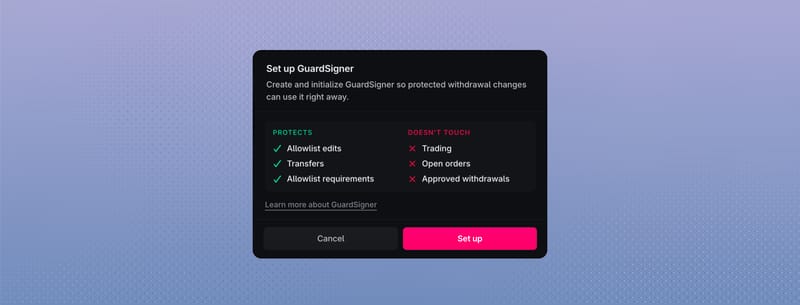
Protected whitelist changes need GuardSigner. It is not a login method or an MFA replacement.
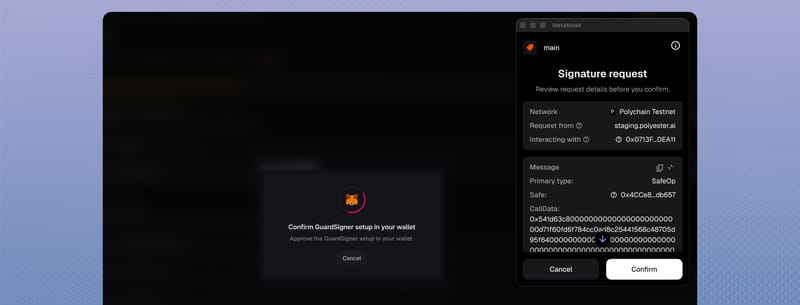
Open Security to check whether GuardSigner is ready. Complete setup before you change a protected whitelist. See GuardSigner for setup, rotation, and private-key export.
Use a saved destination
When you withdraw or transfer, select a saved entry and check the asset, chain, complete destination, and whitelist status shown in the review. A saved label makes the destination easier to recognize, but the complete address or account remains the destination that receives the funds.
FAQ
No. The Address Book lets you save destinations without whitelisting them. The whitelist toggle is off by default when adding an entry. Turn it on to approve the destination for internal transfers or withdrawals, depending on the entry type. You can also do this later by editing the entry. When the relevant whitelist is enabled, you can only transfer or withdraw to whitelisted destinations. Learn about securing your account.
MFA adds a verification step before sensitive actions are performed, including but not limited to changes to whitelist settings. An on-chain whitelist limits withdrawals or internal transfers to destinations you have approved, but you must have MFA enabled to use the whitelist. Learn about securing your account.