A widget is a Trading Screen panel for one job: a chart, the book, the form, or your account activity. In Advanced, you add widgets from Add Widget, then drag, resize, float, or group them as tabs.
Use Standard when you want the same widgets in a fixed arrangement. Use the pages below when you want the controls inside a specific widget.
Widgets
These are the Trading Screen panels you can add, group, and rearrange on Advanced. Open a widget page when you want the controls inside that panel.
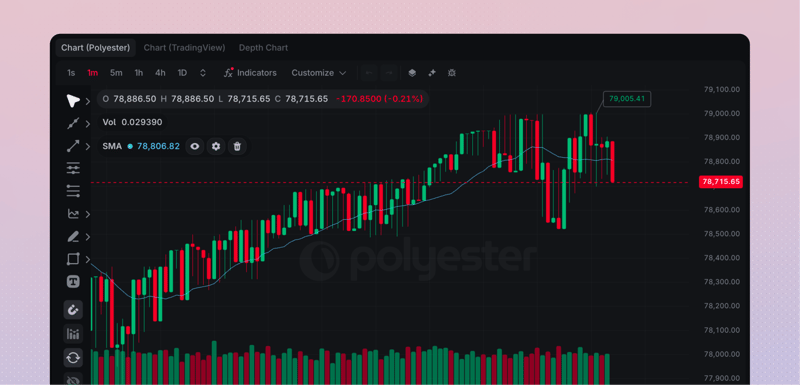
Polyester Chart
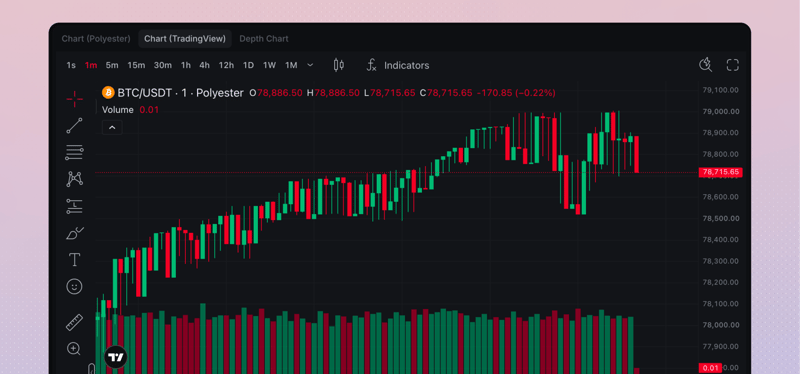
TradingView Chart
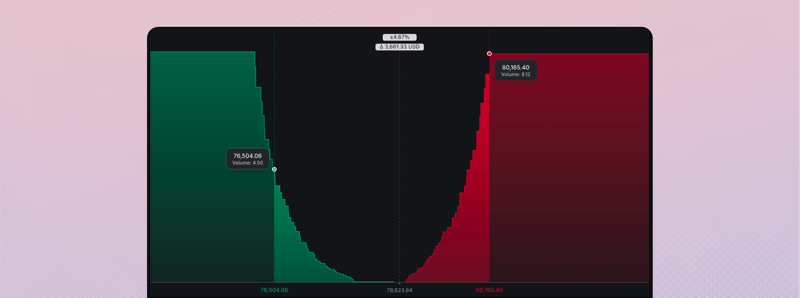
Depth Chart
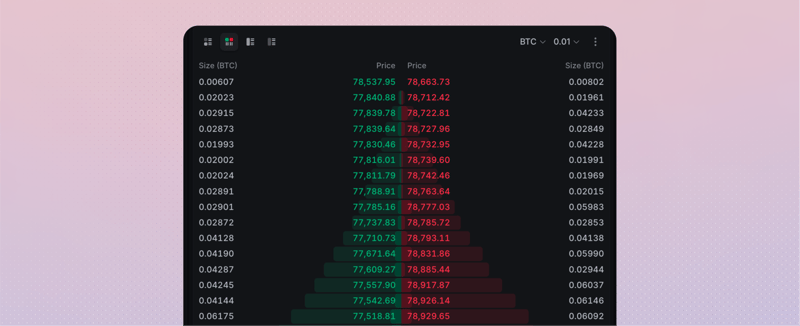
Order Book
Market Trades
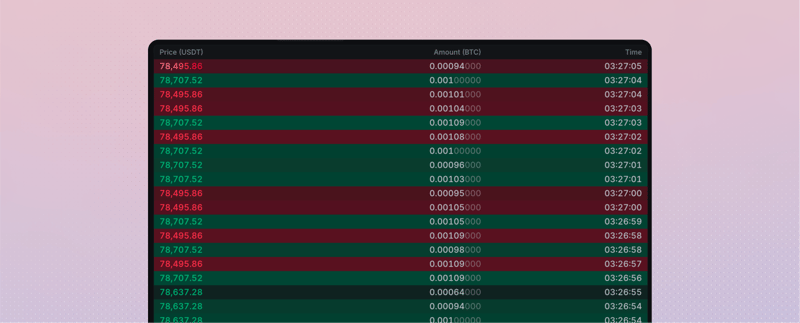
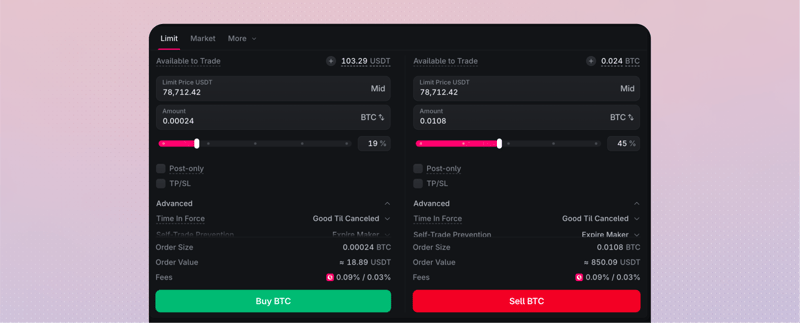
Order Form
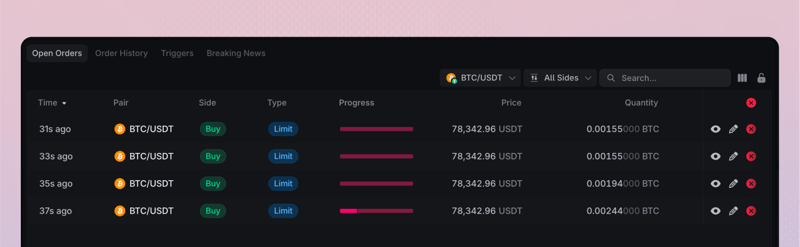
Open Orders
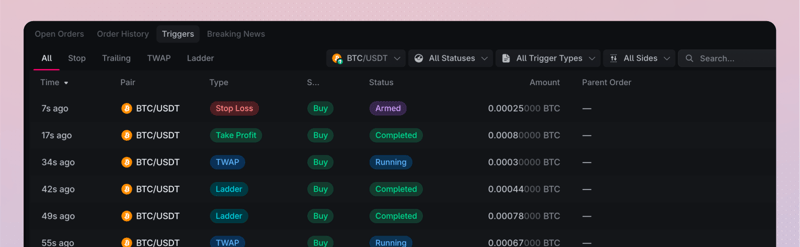
Triggers
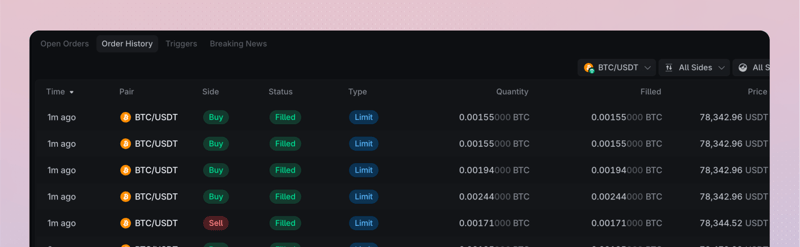
Order History
Funds

Widgets in Advanced layout
On Advanced layout, add a widget to the workspace, drag it into place, or float it over the grid.
View
Click Add Widget in a tab header, or open the widget catalog from the workspace toolbar. Search for the panel you want, then drop it onto the screen.
Drag
Drag a panel or tab to a new place on the workspace. Drop it beside another group to split the layout, or drop it onto a group to stack it as a tab. You can also move one tab from its current group into another group when you want those widgets together. Layout changes affect presentation only. They do not place, modify, cancel, or settle an order.
Float
Click Float panel to pull a group out of the grid. Move the floating group, then click Dock panel to put it back.