Multi-factor authentication (MFA) adds another check before sensitive account actions. You can use a passkey or authenticator app and keep recovery codes as a backup.
Open Security to see your methods, add another one, or replace a method you no longer use.
Choose an MFA method
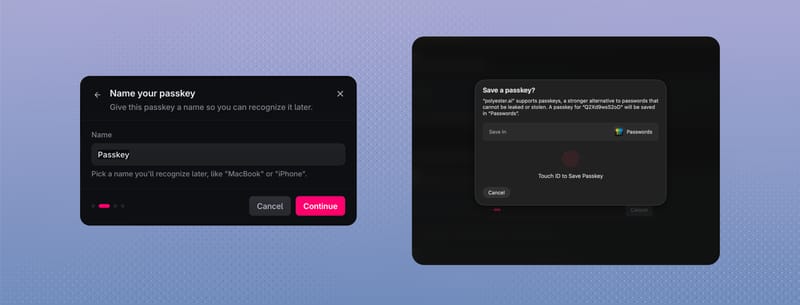
A passkey uses Face ID, Touch ID, a device PIN, or a compatible hardware security key. It is quick to use and resistant to phishing.
Check whether your passkey syncs across trusted devices or stays only on the device where you created it.
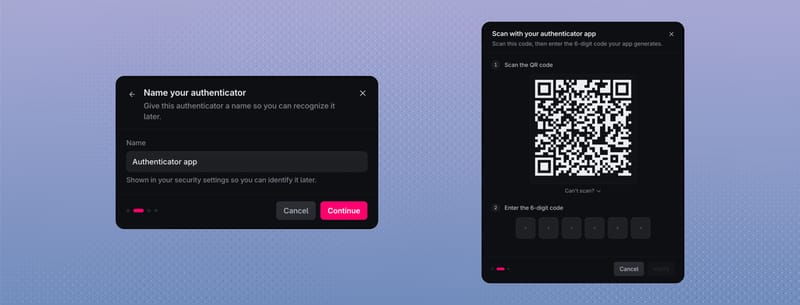
An authenticator app generates a new six-digit code at regular intervals. Scan the setup QR code once, then enter the current code to finish enrollment.
Protect the setup QR code and secret. Anyone who copies either can generate valid codes.
Set up MFA
Open Security
Go to Security and find Multi-Factor Authentication.
Add your first method
Choose a passkey or authenticator app and complete the device or code prompt.

Name the method
Use a label that helps you recognize the device or authenticator without including a secret.
Save your recovery codes
Store the codes somewhere protected and separate from your primary device.
Add a backup method
Enroll another method so one lost device does not lock you out of protected actions.
Recovery codes
Recovery codes let you complete an MFA challenge when your usual method is unavailable. Each code works once.
- Keep them out of email, chat, screenshots, support tickets, source code, and browser autofill.
- Remove a code from your saved set after using it.
- Regenerating codes replaces the entire previous set.
Manage your methods
The Security page shows when each method was added and last used. Rename a method when a clearer label would help, or remove a method you no longer control.
You cannot remove your final MFA method. Add and test its replacement first, then remove the old method.
When Polyester asks for MFA
Polyester automatically requests MFA when an action needs more protection. Some actions accept a recent MFA check, while higher-risk changes ask for a fresh verification tied to that request.
Examples include changing security settings, managing API keys, changing whitelists, exporting an embedded owner wallet, or moving funds under an MFA requirement.
If verification fails
- Try another enrolled method if one is available.
- For authenticator codes, check that your device time is correct and enter the newest code.
- Use one unused recovery code when your regular methods are unavailable.
- If the prompt is unfamiliar, stop and review Sessions & Alerts.
Polyester support never needs your authenticator secret, current code, passkey credential, or recovery code.
FAQ
Your wallet controls your Polyester account. MFA adds a separate verification check before sensitive actions in the app, including but not limited to withdrawals, transfers, and changes to security settings or API keys. You can use a passkey or authenticator app and keep recovery codes as a backup. It adds another layer of protection on top of keeping your wallet and sign-in identity secure.
Preferably both. Polyester lets you set up more than one MFA method, so you have a backup if one becomes unavailable. A passkey uses your device’s biometrics, a device PIN, or a compatible hardware security key. An authenticator app generates time-based six-digit codes. Choose the combination that fits your devices and security habits. Learn about securing your account.
Polyester recommends setting up multiple MFA methods. If you lose a method or your recovery codes, use another enrolled method or an unused recovery code to add a replacement method, remove a lost one, or generate new codes. If you lose all MFA methods and recovery codes, Polyester cannot replace or recreate an MFA method or regenerate codes for you. Contact support through the chat icon on Polyester. The team can assist, but recovery is not guaranteed.