The Order Form turns a trading decision into a precise instruction. Its controls change with the active Pair, side, order type, account permissions, and current product availability.
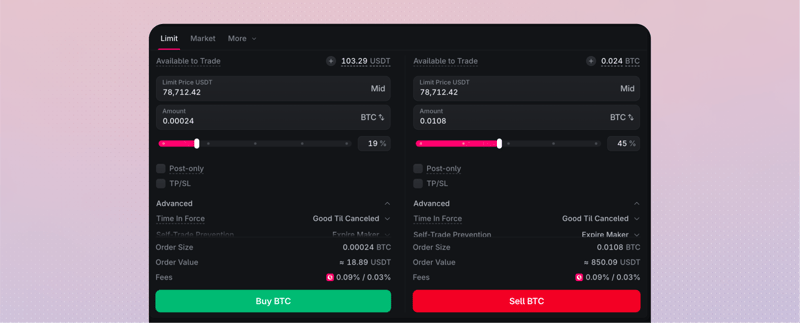
Changing the form prepares a future submission. It does not modify an open order unless the form was opened through an explicit modify action for that order.
Review every submission
| Check | Why it matters |
|---|---|
| Pair | Identifies the base and quote Assets and current market state |
| Side | Determines whether the order buys or sells the base Asset |
| Order type | Defines how price and execution should behave |
| Amount | Sets the requested quantity in the displayed unit |
| Price or protection | Sets a limit, trigger, or market-order protection when required |
| Time in force and modifiers | Controls how the order can work, rest, or avoid taking liquidity |
| Available Balance | Shows what the selected account can use for a new eligible order |
| Estimate and fee | Previews the expected balance effect without guaranteeing execution |
Pair metadata provides the price tick, quantity step or lot size, minimum quantity, minimum notional, amount scales, market state, and separate default market-order protection for Buy and Sell. It does not publish a maximum order size.
The Order Form applies these Pair rules and surfaces validation when a value does not fit them. A submission can also be rejected by the available balance, account policy, market state, or an unsupported modifier. API users can read the Pair rules from the public spot configuration.
A Subaccount policy can limit maximum order notional. This is an account restriction, not a global maximum order size for the Pair.
For a market order, the Pair's per-side slippage value is the default. The public order contract can override it with maximum slippage in basis points or an absolute tick delta when the selected interface exposes that choice.
Self-trade prevention defaults to Expire Maker when it is omitted. The current order contract also accepts Expire Taker or Expire Both per order. Read the selected value before submitting instead of assuming a preference carries across forms.
After you submit
Submitting begins an order lifecycle. An acknowledgement does not mean the order is working, filled, or financially settled.
Use Open Orders for working quantity, Order Triggers for conditional parents, and Order History for ended outcomes.