Keyboard Shortcuts on Polyester
Keyboard shortcuts are available now on Polyester Testnet for desktop: open search with / or Ctrl+K, maximize or float trade panels, and edit chart drawings.
You can now reach almost everything on Polyester from your keyboard! One key opens search from any page, a single key gives a trade panel the whole screen, and the editing keys you already know work on your chart drawings.

Read repliesYour keyboard shortcut to everything on Polyester is here ⌨️ Try out keyboard shortcuts on desktop - available now on Polyester Testnet!
Search from Anywhere
Press / or Ctrl + K (⌘ + K on Mac) on any Polyester page, including the home page, docs, and announcements, and search opens over what you're doing. On wide screens, the “Search” box in the top bar shows a / key as a reminder. In a text field, / types a slash, so the shortcut never interrupts an order you're entering.
Once search is open, you don't need the mouse. Start typing and your query goes straight into the search field. The arrow keys move the highlight through results, and in two-column sections ← and → move across. Press ← from the first column to reach the categories on the left, such as “Spot”, “Actions”, or “Pages”, pick one with ↑ ↓ and Enter, then press → to go back to the results. Ctrl + ↑ or ↓, or Home and End, jump to the first or last result. Enter opens the highlighted result, and Esc closes search. The footer keeps these hints in view: “Navigate”, “Select”, and “Close”.
Search finds more than markets. Type a pair to open its trade screen, or open “Actions” to change “Currency”, “Theme”, “Trading Palette”, “Number format”, and other settings without leaving the page. When you're signed in, “Actions” also includes commands such as “Transfer Funds” and “Switch Account”.
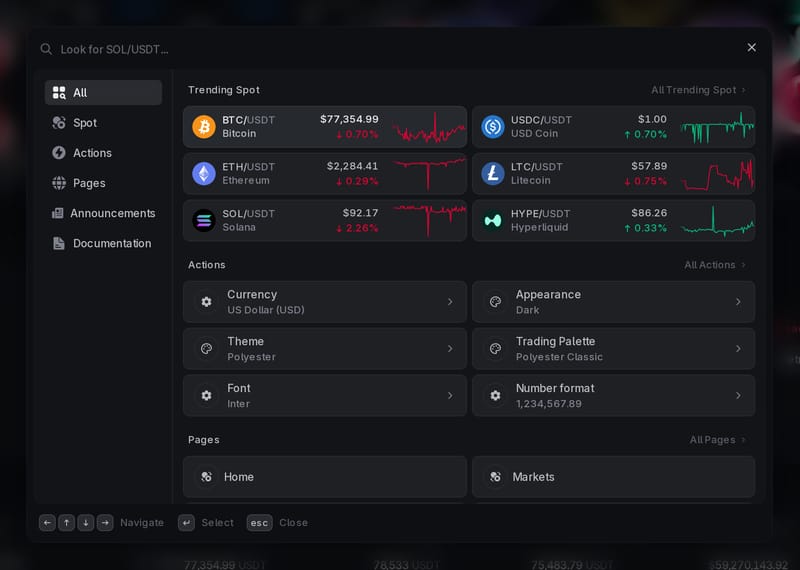 Open search from any page, then pick a market, setting, or page without touching the mouse.
The same / and Ctrl + K keys open search in Polyester Scan.
Maximize and Float Trade Panels
In the “Advanced” layout of the trade screen, every widget sits in a panel you can rearrange. Two keys act on the panel under your mouse pointer:
Fmaximizes the panel to fill the workspace. Press it again to restore the layout.Shift+Fpulls the panel out into a floating window above the layout. Press it again to dock it.
Say you're watching the order book and want a closer look at the chart. Point at the chart, press F to see the candles at full size, then press F again to get your layout back. Neither key does anything while you're typing in a field or holding Ctrl, ⌘, or Alt, so entering a price never moves your panels.
Each panel also shows its keys. Hover the buttons at the top right of a panel, and the tooltips read “Maximize View” or “Restore” with F, and “Float panel” or “Dock panel” with Shift + F. When a panel has more tabs than fit in its header, its “Panel actions” menu lists the same actions with their keys.
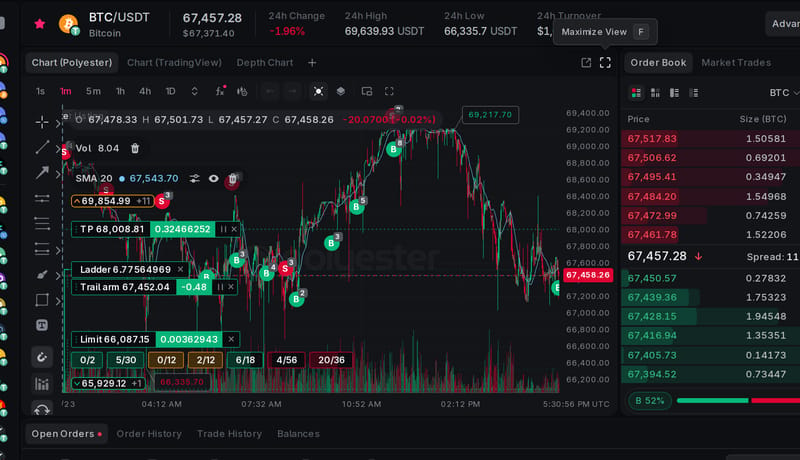 Hover a panel's buttons to see the key for each action.
To switch layouts, open “Trading Layout” in the market header and choose “Advanced”. The Trading Screen guide explains both layouts.
Edit Chart Drawings with the Keyboard
Polychart, the chart in the “Chart (Polyester)” panel, uses the editing keys you know from other apps. They work on the drawings you place with the tools on the left of the chart. On Mac, use ⌘ wherever this section says Ctrl.
- Undo and redo:
Ctrl+Zundoes the last drawing change andCtrl+Yredoes it. On Mac,⌘+Shift+Zalso redoes. The “Undo” and “Redo” buttons in the chart header show these keys in their tooltips. - Copy and paste: select one or more drawings, press
Ctrl+C, move your pointer to where you want them, and pressCtrl+V. The copies land at your pointer, already selected, so you can reuse a set of lines on another part of the chart. - Delete:
DeleteorBackspaceremoves the selected drawings, andCtrl+Zbrings them back. - Escape:
Escclears the selection, cancels a drawing you've started, and dismisses a measurement.
Two mouse modifiers help too. Hold Shift and click to start a measurement, then click again to finish it. Hold Alt while you drag a drawing to duplicate it instead of moving it.
When you're signed in and have open orders, you can move an order line from the keyboard. Select a line on the chart, then press ↑ or ↓ to move its price one step at a time, or hold Shift for bigger steps. It works like dragging the line with the mouse.
These shortcuts also work in the Mini Player. For more on drawing tools, read the Polyester Chart guide.
Open Polyester Testnet on your computer and press / to try your first shortcut.