The Chart Mini Player Now Works on iOS and Android
Float a live Polyester chart over other apps on your phone with Picture-in-Picture. Tap Miniplayer in the chart toolbar on Polyester Testnet to try it.
The Polyester Chart Mini Player now works on your phone. On iOS and Android, tap "Miniplayer" in the chart toolbar and the chart floats in a small Picture-in-Picture (PiP) window that stays on screen when you leave the browser. Keep the candles moving in a corner while you reply to messages, browse other apps, or watch a video.

Read repliesYou can now use the mini-chart player on iOS or Android. Watch any Polyester chart live using Picture-in-Picture (PiP) while browsing other apps or watching videos. The mobile mini-player also supports all candle timeframes, themes and styles. Available on Polyester Testnet.
Watch a Chart Over Other Apps
When we introduced the Mini Player in October, it could pop the chart out into its own window on desktop browsers. Phone browsers can't open a separate window like that, so on a phone the Mini Player stayed inside Polyester.
Phone browsers can float a video, though. Safari on iOS and Chrome on Android now get the chart as a live video in the system's Picture-in-Picture window. It sits above everything else on the screen, the same way a video call or a paused show does, so you can follow a market without keeping Polyester open.
Open It From the Chart Toolbar
Open any spot market, such as BTC/USDT, and stay on the "Chart" tab with Polychart selected. On a phone, the chart source switch at the top right of the panel shows only the Polyester and TradingView marks; tap the Polyester mark. The "Miniplayer" button has a picture-in-picture icon and sits at the end of the chart toolbar, just before the fullscreen button. If your screen is narrow, swipe the toolbar sideways to reach it.
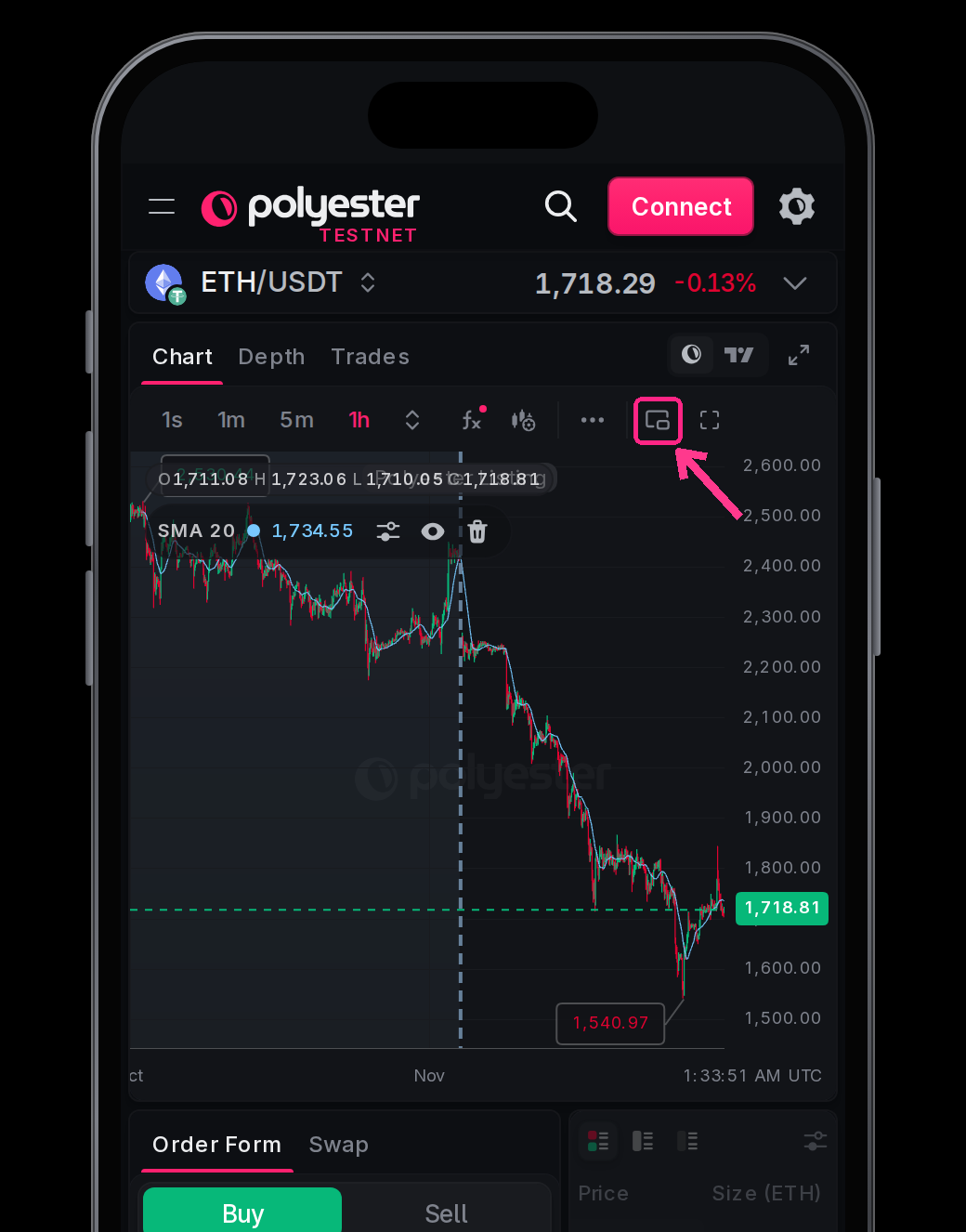 Tap the highlighted Miniplayer button, just left of fullscreen.
Tap it and the chart moves into the floating window. On the trading page, the chart panel shows "Chart is in the mini-player" with a "Restore chart" button, so you can tell where your chart went. Now switch apps: the floating chart stays on top. You can drag it to another corner or resize it with your phone's usual Picture-in-Picture gestures.
What the Floating Chart Shows
The floating window shows the chart you opened it from, labeled with the pair and the candle timeframe, such as "BTC-USDT · 1m". It keeps moving to the newest candle as the market trades, so the latest price is always in view.
It uses the settings you had on the trading page: the same timeframe, your theme, and your chart style. To watch a different timeframe or look, set it on the trading page before you tap "Miniplayer". The floating chart is a live picture of the chart, so you can watch it but not tap, zoom, or draw on it.
Only one Mini Player runs at a time. If you open it again from another market, it switches to the new pair.
Pause, Return, or Close
The floating window uses your phone's own Picture-in-Picture controls:
- Pause stops the chart. Play brings it back to the live chart.
- The return button takes you back to Polyester and puts the chart back in the trading page.
- Close ends the Mini Player, and the chart goes back to the trading page.
You can also tap "Restore chart" on the trading page to close the floating window from Polyester.
If your browser doesn't allow Picture-in-Picture, the Mini Player opens inside Polyester instead: a small player in a corner of the screen that stays with you as you move between Polyester pages. Drag it to another corner, tap "Expand chart" to go back to its market, or tap "Close mini-player".
Open BTC/USDT on Polyester Testnet on your phone and tap Miniplayer in the chart toolbar to keep the market in view while you switch apps.