Checkpoint 1: Your Trading Recap and Shareable Card
The first Polyester Testnet Deployment has been saved as Checkpoint 1. Open Checkpoints in your account to look back on it chapter by chapter and share your Checkpoint Card.
We've reached Checkpoint 1! Everything you did in the first Deployment of Polyester Testnet is now saved to your account. Open Checkpoints to see a recap of your trading in that Deployment, get a Checkpoint Card with your volume, VIP tier and equity, and share it as a short video.
With Checkpoint 1 saved, Testnet moves on to its next Deployment and you start again with a clean slate. Your Checkpoint 1 stays with your account.
What a Checkpoint Is
A Checkpoint records your Testnet progress at the end of each Deployment: your trading statistics, your equity and your VIP tier, across your Main Account and all your Subaccounts.
When a new Deployment begins, it brings new features, upgrades and improvements. Your Paper Asset balances, trading volume and VIP tier reset, but your account, Subaccounts, API Keys and settings stay as they are, and every Checkpoint you've earned is kept.
Your Checkpoints are private and only visible to you. You decide what to share.
Look Back on Checkpoint 1
Open "Checkpoints" from the Account section of your account navigation. The page opens on the card for Checkpoint 1, with its date range below it. Select "View full recap" to open the story of your Deployment. The button sits on the card (under the title on a phone) and stays highlighted until you've opened that recap once.
The recap opens with one line that sums up your Deployment: your total volume, the markets you traded across, how many days you were active, and the trades and orders behind it. Scroll down and the rest unfolds in numbered chapters. On a wide screen, the "In this recap" list beside them shows where you are and lets you jump to any chapter.
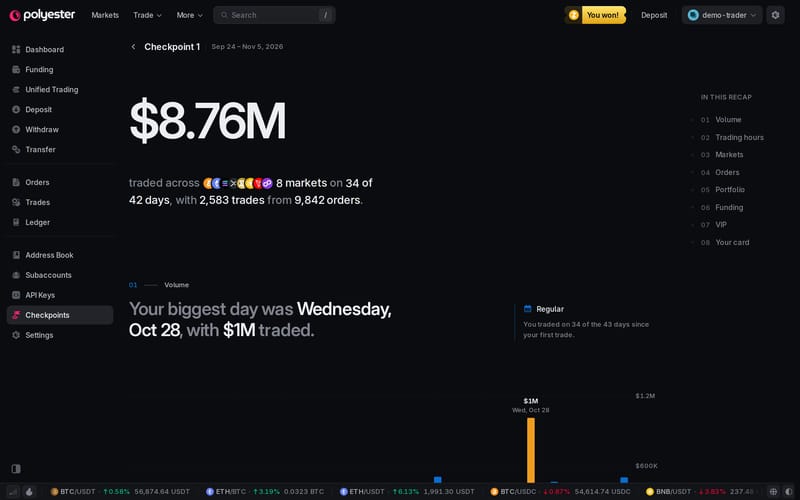 The recap opens with your whole Deployment in one line.
| Chapter | What It Shows |
|---|---|
| Volume | Your volume day by day with your biggest day marked, your trade count, volume per active day and your biggest trade |
| Trading hours | When you trade, as a grid of weekdays and hours in your local time, every day of the Deployment with your longest streak marked, and your most active hour |
| Markets | Your top markets by share of your volume |
| Orders | Order type, time in force, outcomes, and maker versus taker side by side, then how often you used post-only, order amendments, stop loss, take profit, trailing stops, TWAP and Ladder orders |
| Portfolio | Your portfolio value over the Deployment with its peak marked, the money that came in and went out, and your Paper Asset balances at the Checkpoint |
| Funding | The testnet tokens you deposited, withdrew and held at the end. This chapter appears only if you moved or held testnet tokens. |
| VIP | The tier you held at the Checkpoint, your peak tier and how many times you moved up |
| Your card | Your Checkpoint Card, ready to share |
Each chapter before your card opens with a sentence about your own numbers and, when there's activity behind it, a trait that reflects your trading style in that area, with the reason you earned it. Depending on how you traded, you might be a Night owl or a Weekend warrior, a BTC maxi (named after the asset you traded most) or Diversified, a Risk manager or an Algo trader, a Claim collector or a Steady climber.
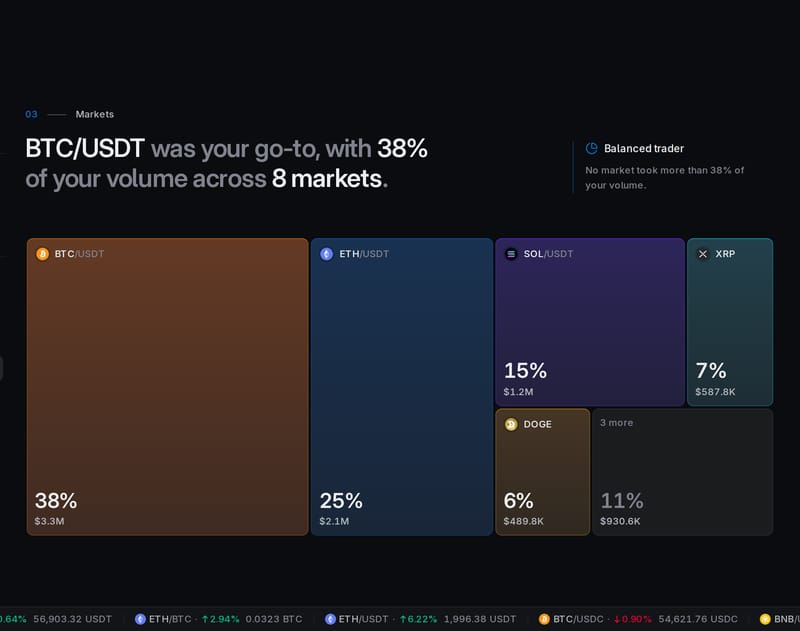 Each chapter summarizes your activity with charts and a personalized insight, plus a trait when applicable.
A few details help you read the figures. Testnet tokens such as tBTC have no price, so they are listed by amount and left out of every USD total. A figure marked with ≈ was estimated from partial data. The footer shows when the Checkpoint was saved, in your own time zone, and the figures in a saved Checkpoint are final.
Your Checkpoint Card
Every Checkpoint comes with a Checkpoint Card, a 3D card with a Polyester character of your choice displayed in its window. The front shows your "Trading volume" and your "Highest VIP tier", with "Checkpoint 1" printed under the character. Drag or tap the card to turn it, or select "Flip" to see the back, which shows your "Equity" (the USD value of your Paper Asset balances across your Trading and Funding accounts at the end of the Deployment) and the date you "Joined". Both sides display your avatar and username. Trading volume and equity are displayed in USD, so these values are clear to anyone you share the card with.
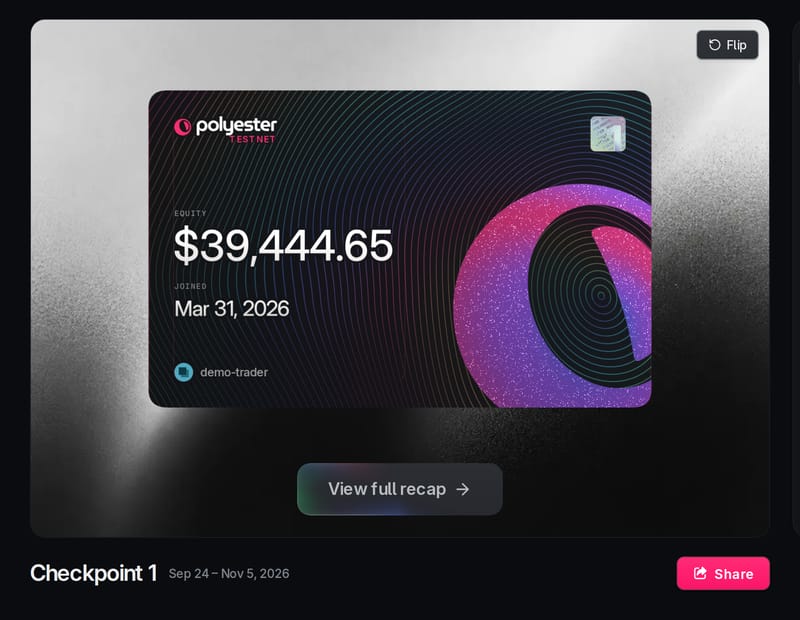 Flip the card to see its back.
As more Checkpoints are saved in future Deployments, each one appears under "All checkpoints" as a small copy of its card. Select a card to view and customize it. Appearance changes apply to every card on this device. The one you're looking at is marked "Viewing".
Make It Yours
Next to the card, a panel lets you change how it looks:
- "Character": the Polyester bot inside the card's window. Choose from "Pink", "Wizard", "Aviator", "King", "Samurai", "Cloud", "Explorer", "Bow", "Skater", "Ski", "Evil", "Astronaut", "Bucket", "Farmer", "Shades", "Snowboard", "Moss", "Cat" and "Tuxedo".
- "Finish": choose a hologram or aluminum finish.
- "Theme": a dark or a light card.
- "Background": one of four backdrops behind the card, or none.
The card updates as you choose. Your look is saved on your device, so every card on the page uses it, and it's the look the studio exports. The studio itself only sets the motion and size, so change the look here first.
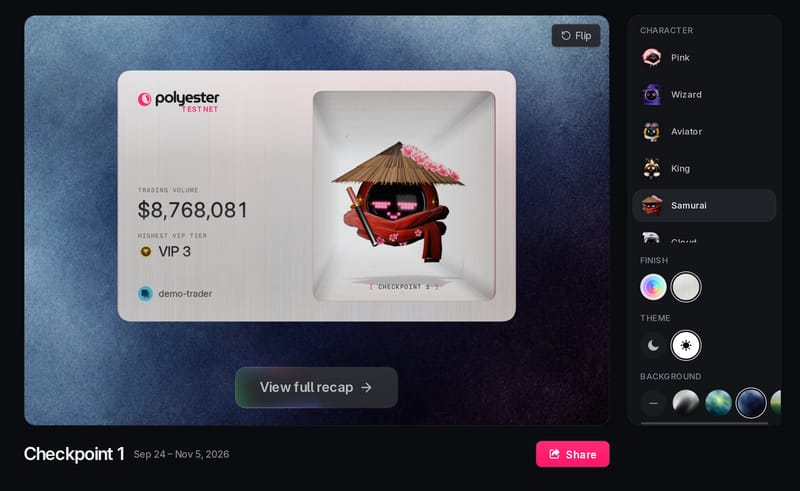 The same card with a different character, finish, theme and background.
Share It as a Video
Select "Share" under the card, or at the end of your recap, where the last chapter shows your card. The card studio opens full screen with a preview of exactly what you'll export, and one bar of controls at the bottom.
Your export is a short video loop of the card moving. First pick a motion: "Dwell spin", "Spring flip", "Turntable", "Slow reveal", "Hand tilt", "Tumble", "Snap", "Swing", "Bounce flip" or "Double take". The preview plays the loop with a timeline, so you can pause it and scrub through.
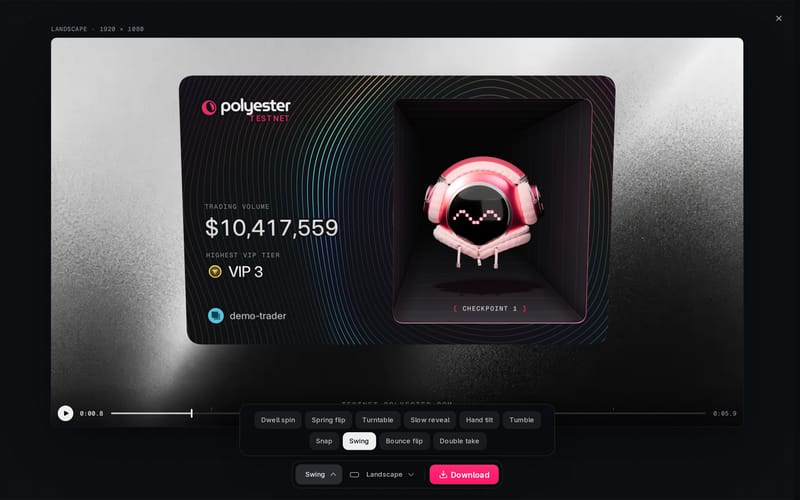 Each motion moves the card differently. The preview shows exactly what the video will be.
Then pick a size to fit where you're posting:
| Size | Dimensions |
|---|---|
| "Landscape" | 1920 × 1080 |
| "Square" | 1080 × 1080 |
| "Portrait" | 1080 × 1350 |
| "Story" | 1080 × 1920 |
Every video has testnet.polyester.com printed under the card, so people who see it know where to find Polyester.
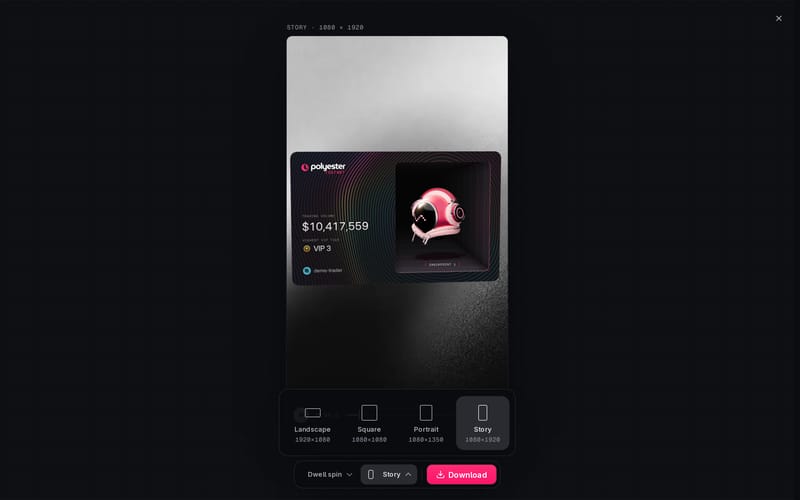 The preview takes the shape of the size you pick.
The studio starts preparing your file as soon as you settle on a look, so it's usually ready by the time you press the button. If it isn't, the button shows a progress ring and a percentage until it is.
- If your browser doesn't support sharing files directly, select "Download" to save the file.
- If your browser supports direct sharing (typically on phones), select "Share" to open the share sheet and send the file straight to an app. On a larger screen, a "Download" button sits beside it. On a phone, where the app accepts text, the post is prefilled with your Checkpoint number, VIP tier, equity and volume. If sharing fails, the studio says so under the controls.
Sharing a card reveals only the information shown in the video, including your username, avatar, and trading figures. Your full saved Checkpoint remains private.
On Your Phone
Checkpoints work on phones too. The recap's chapters and charts stack into a single column. Under the card, the "Customize card" panel holds the same "Character", "Background", "Finish" and "Theme" choices, with the characters and backgrounds in rows you can swipe through, and the card studio fits its controls into a bar at the bottom of the screen. The "Story" size is designed for vertical posts and stories.
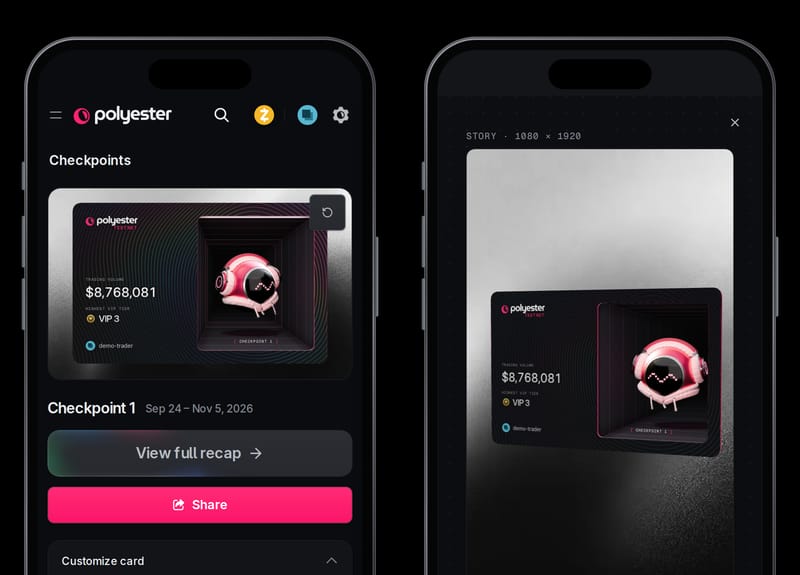 Open your recap, customize your card and export it as a "Story" without leaving your phone.
Open Checkpoints
Sign in to Polyester Testnet and go to Checkpoints in your account.
Relive Checkpoint 1
Select "View full recap" and scroll through your Deployment chapter by chapter.
Style and Share Your Card
Pick a character, finish, theme and background, then select "Share", choose a motion and a size, and select "Download" or "Share".
The VIP tiers guide explains the tiers your recap and card track. Open your Checkpoint 1 to see what kind of trader you were in the first Deployment, then share your card.