Protect Your Polyester Account with MFA
Secure your Polyester account with a passkey or an authenticator app.
Your Polyester account now has account-level security controls: multi-factor authentication (MFA) with a passkey or an authenticator app, single-use recovery codes, and withdrawal and transfer whitelists. Use them together to protect your withdrawals, transfers, and other sensitive actions.

Read repliesSecurity is more important than ever in DeFi. That's why Polyester has added account-level features such as MFA, Passkey, Withdrawal Whitelists and recovery codes. Apply these to your withdrawals, transfers and other sensitive actions to keep your account secure.
MFA adds a second check to sensitive actions on Polyester. With a passkey or an authenticator app on your account, Polyester asks you to confirm before funds leave your Unified Trading Account, before API keys change, and before anyone weakens your security settings. Subaccount owners can also require every member to set up MFA before they perform sensitive actions on a shared Subaccount.
Signing in and placing, amending, or canceling orders never ask for MFA. But it isn't an optional extra either: withdrawing or transferring out of Unified Trading and changing key security controls require it. If you haven't set up a method when you reach one of these actions, Polyester walks you through setup first, so it's worth doing before you need to move funds.
Your sign-in wallet, Google account, or email still owns your account. MFA is a separate layer: it confirms that you approved an action from an interactive Polyester session.
Choose a Passkey, an Authenticator App, or Both
You set up MFA under “Settings” > “Security”, in the “Multi-Factor Authentication” section. Until you add a method, account pages show a banner that reads “Finish securing your account.” with a “Set up MFA” button that opens the same flow.
Choose either method, or set up both:
- Passkey: approve with a passkey on your device or with a compatible hardware security key. Your device unlocks the passkey the way you've set it up, for example with Face ID, Touch ID, Windows Hello, or a PIN. Passkeys resist phishing.
- Authenticator app: scan a QR code once with an app such as 1Password, Authy, or Google Authenticator, then enter its rotating 6-digit code.
You can enroll more than one method, and we recommend it: if you lose a phone or a security key, another method still gets you through.
Set Up Your First Method
Open Security
Go to Security in your account settings. Choose “Add a passkey” or “Add an authenticator app”. If you already have a method, select “Add method” instead, and Polyester asks you to verify with that method first.
Name the Method
Give it a name you'll recognize later (for a passkey, something like “MacBook” or “iPhone”) and select “Continue”. The name appears in your security settings so you can tell your methods apart.
Verify It
For a passkey, approve the request when your device shows it. For an authenticator app, scan the QR code (or select “Can't scan?” to copy the setup secret), enter the 6-digit code, and select “Verify”. If the setup request expires before you finish, select “Restart setup” to get a new QR code.
Save Your Recovery Codes
Your first method comes with a set of single-use recovery codes. Select “Save codes”, store them somewhere private and away from your usual device, check “I've stored these codes somewhere safe”, then select “Done”. The dialog stays open until you confirm you've saved them.
Confirm It's You When It Matters
When an action needs MFA, Polyester shows a “Confirm it's you” prompt that names the action, for example “To withdraw funds to an external wallet, choose how you'd like to verify.” Approve with your passkey, enter a code from your authenticator app, or use one of your recovery codes if your usual methods aren't available.
Not every prompt asks the same thing:
- A recent check is enough for everyday moves. If you verified in the last 30 minutes, Polyester doesn't ask again when, as the account owner, you move funds from Unified Trading to your own Funding Account, transfer between your own accounts, or send to a destination you've added to your whitelist. Editing Address Book entries works the same way.
- A fresh approval is tied to one action and asked for every time. Other withdrawals and transfers need one, including moves a member makes on a shared Subaccount. So do API key changes, adding or removing a whitelisted destination, turning a whitelist off, adding another MFA method, removing a method, and replacing your recovery codes.
A fresh approval also counts as your recent check for the next 30 minutes, so a series of everyday moves right after it won't keep prompting you.
Two kinds of money movement work differently. Moves that start in your Funding Account are approved with the wallet that owns your account and protected by on-chain controls, so enrolling MFA doesn't add a prompt to them. Withdrawals and transfers made with an API key don't use MFA prompts either: they rely on signed requests, the key's policy permissions, and your destination controls. Creating, changing, or deleting an API key, though, always needs a fresh approval, and you need MFA set up to create one. The MFA & Recovery guide covers when Polyester asks, and the developer pages on multi-factor authentication and withdrawals and transfers security list every rule.
Manage Your Methods and Recovery Codes
The “Multi-Factor Authentication” section lists every method you've enrolled, when you added it, and when you last used it. Select the pencil next to a name to rename it, or “Remove” to delete a method you no longer control.
The “Recovery Codes” row lets you “Regenerate” your codes if you've used some or think they were exposed. The new set replaces the old one, and every previous code stops working.
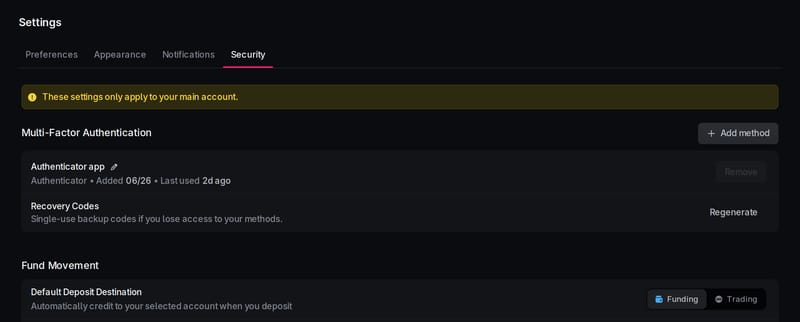 Your methods and recovery codes live together in the Multi-Factor Authentication section.
Require MFA for Subaccount Members
If you share a Subaccount with a team, you can make MFA mandatory for everyone on it. Open the Subaccount, go to its “Security” tab, and turn on “Require MFA”. Only the Subaccount owner can change this setting, and you need MFA on your own account first. If you don't have it yet, the panel offers a “Set up” button. “Require MFA” sits at the top of the tab, with the description “Require all members to enroll in MFA before performing sensitive actions on this subaccount.”
Before you confirm, the panel lists every member who hasn't enrolled yet under “Not enrolled yet”. Select “Enable requirement” to turn it on. Members without MFA see an “MFA required” message the next time they switch to that Subaccount, with a “Set up MFA” button. Until they enroll, their sensitive actions on the Subaccount are restricted, and anyone you invite has to set up MFA before they can accept. The member list shows which members have MFA enabled, so you can follow up.
To turn the requirement off, switch “Require MFA” off again and select “Disable” to confirm. Turning it off needs a fresh approval. Members without MFA then regain access to protected actions on that Subaccount.
Limit Where Funds Can Go with Whitelists
MFA confirms that you approved an action. It doesn't decide where funds may go. The “Withdrawal Whitelist” and “Transfer Whitelist”, under “Fund Movement” on the Security page, do that: when one is on, withdrawals or transfers can only go to destinations you've approved. They cover moves from your Funding Account, which don't use MFA, and apply to the relevant moves from Unified Trading too. Each account has its own whitelists, so turn them on separately for your Main Account and each Subaccount.
Turning a whitelist on only needs your wallet's approval (if you haven't set up GuardSigner yet, Polyester sets it up first). Adding or removing a destination, or turning a whitelist off, needs a fresh MFA approval, a GuardSigner approval, and your wallet. Saving an Address Book entry doesn't whitelist it on its own, and a destination that's only allowed because a whitelist is off doesn't count as whitelisted. The Address Book & Whitelists guide explains how to set them up.
What MFA Does Not Do
MFA does not replace the wallet, Google account, or email that owns your account, and it can't recover that owner credential if you lose it. The Secure your account guide explains how MFA, your owner wallet, and whitelists fit together.
Polyester support will never ask for your MFA codes, recovery codes, or authenticator secret.
Open Security and add your first method now.