Introducing Polyester Swap
Swap between tokens trading on Polyester from your Trading Account, through one or two markets with liquidity. Swaps fill on live order books, with no added fees or spreads.
Turning one asset into another no longer means finding the right market, or placing two orders yourself when no market trades the pair directly. With Polyester Swap, you pick what to swap from and what to swap to, enter an amount, and press one button. Swap finds the route, shows you the rate, price impact, and fees before you confirm, and places every order for you. You can swap any pair that one market connects directly, or two markets connect through a shared asset such as USDT, as long as those order books have liquidity to fill your swap.

Read repliesIntroducing Polyester Swap! From your Trading Account, you can now swap between any tokens trading on Polyester. Swaps execute against live Polyester order books, with no added fees or spreads. All swaps also benefit from your VIP tier trading fees. Available now on Testnet!
Open Swap from Anywhere in Your Account
Swap opens as a dialog over the page you are on, so you never lose your place. You can open it from:
- "Trade" in the top navigation, then "Swap"
- The "Swap" button on the Dashboard and on the Unified Trading page
- The "Swap" action on an asset's row in the Assets table, which opens Swap with that asset selected in "From"
- The wallet menu, or "Swap Assets" in search
Swap uses the Available Balance of the account you have selected: your Main Account or one of your Subaccounts. Each has its own Unified Trading Account, so check the active account before you swap. If you're signed out, the button reads "Connect to swap".
Choose Your Assets and Amount
The form has two cards, "From" and "To". Select the asset on either card to open its picker and search by name or symbol. The "From" list shows "Your assets" first, ordered by value, then "Other assets". The "To" list shows every asset you can reach from the asset you sell.
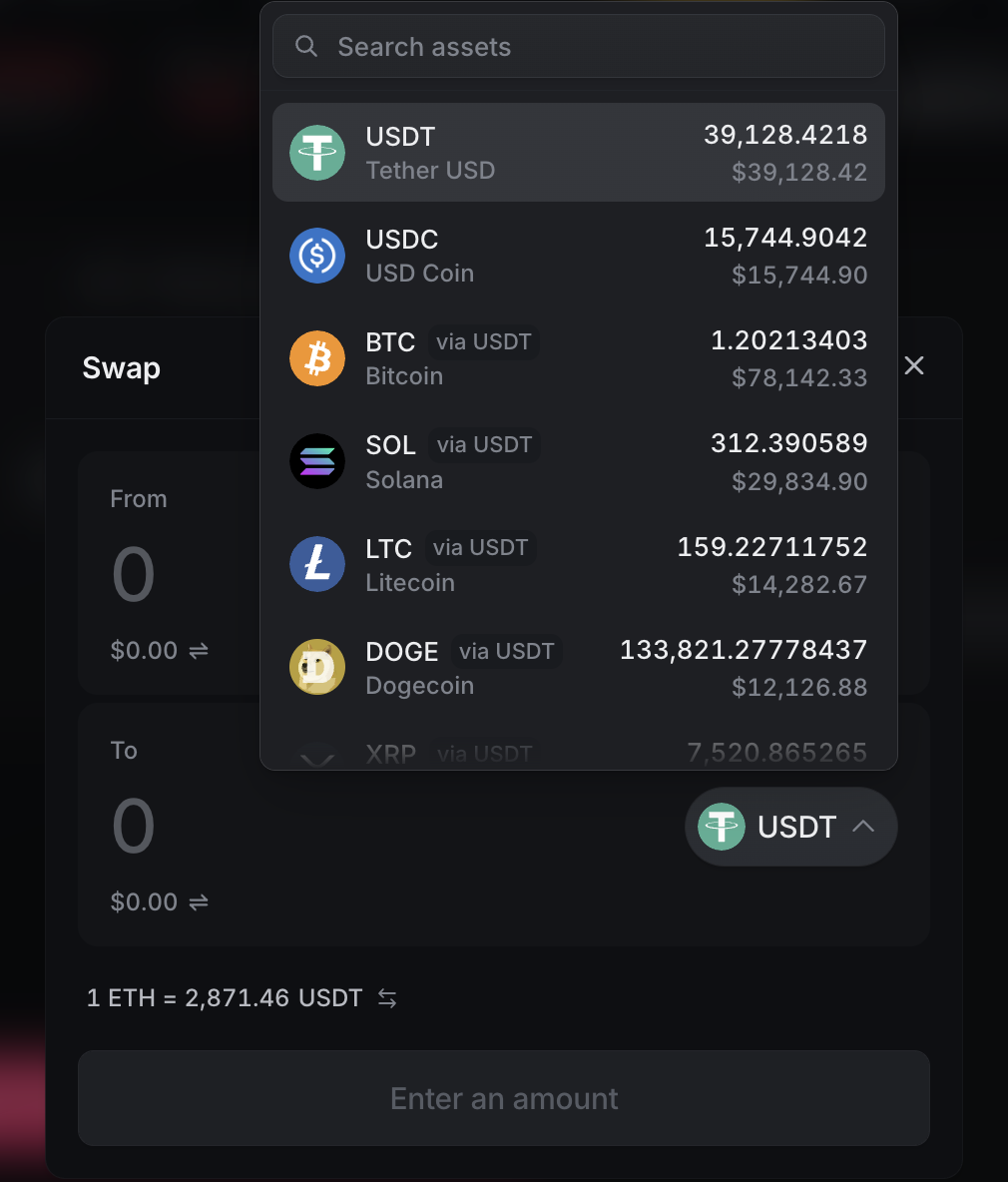 Assets tagged via USDT are reached through two orders, selling for USDT first.
When one market trades your two assets, Swap places a single market order. When none does, the asset is tagged "via USDT" (or another shared asset), and Swap places two orders in a row: it sells what you swap from for the shared asset, then buys what you swap to with it. An asset tagged "No liquidity" can't be reached right now.
You can type the amount on either card. Enter what you want to sell, or what you want to receive, and Swap quotes the other side. "Half" and "Max" fill in part or all of your Available Balance. You can also switch an amount between the token and its USD value, and the arrow button between the cards flips the direction. If you hold none of the asset, "Deposit" and "Transfer" shortcuts take you straight to funding it.
Review the Quote Before You Swap
Under the cards, Swap shows the live rate in the direction that reads above one: for the 0.5 ETH to BTC quote below, about 22.65 ETH per BTC. Select it to read it the other way round. Once you enter an amount, the details below the rate show everything that affects what you receive, and "Details" folds them away:
- "Route": the markets your swap trades on. Hover over it to see each order, such as "Sell ETH for USDT", then "Buy BTC with USDT".
- "Price impact": how much worse your average price is than the market's mid price. Larger swaps fill deeper into the order book, so they move further from it.
- "Fees": the trading fee on each order (see below).
- "Max slippage": how much worse than its quoted price each order may fill. Choose a preset, the market's "Default", or your own value. Anything that can't fill within it stays in your account.
- "Partial fill behavior": shown only for two-order swaps (see below).
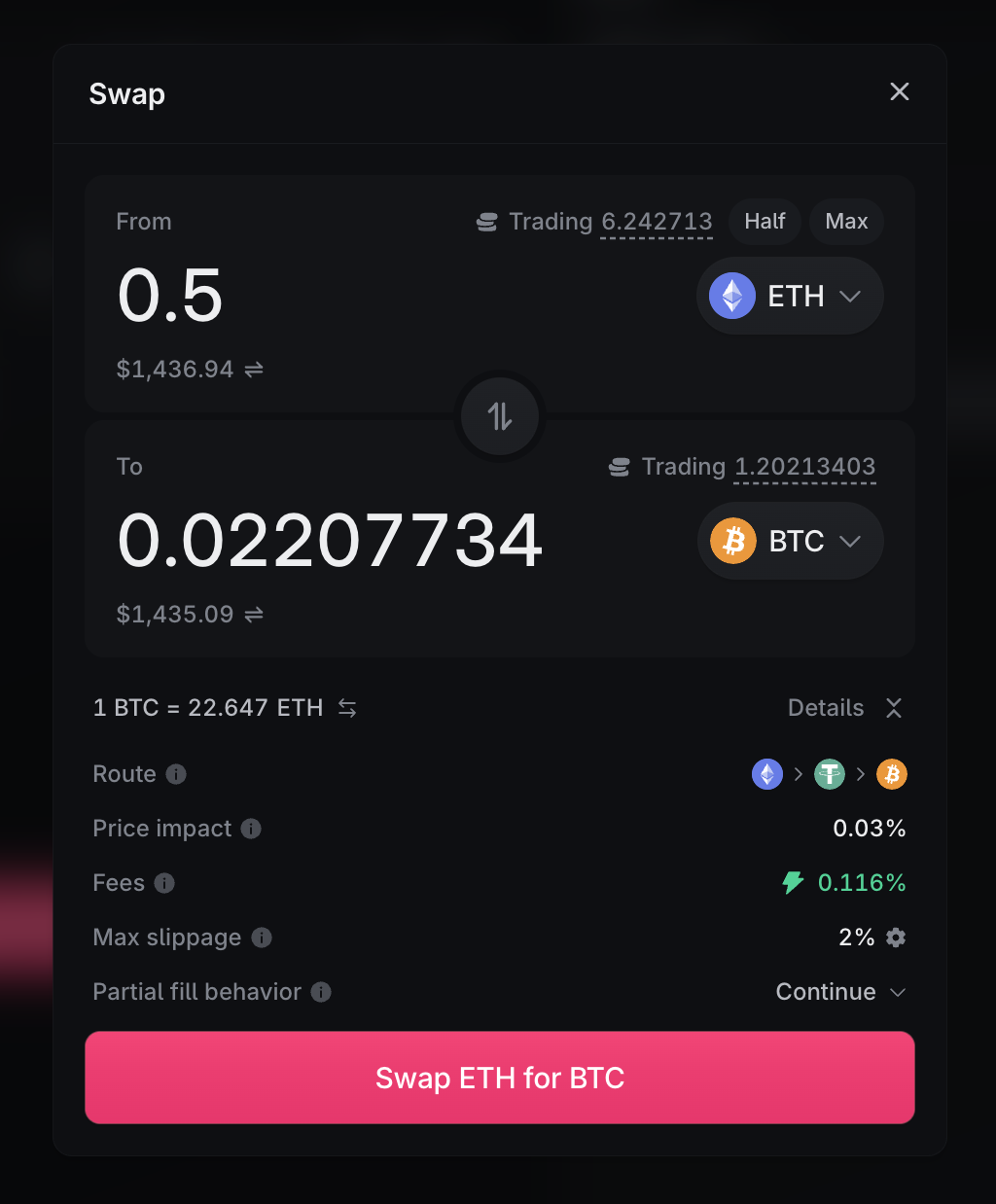 This swap routes through USDT: it sells ETH for USDT, then buys BTC.
The quote follows the order books as they move, so it reflects what the books would return for your size right now. When the quote is ready, the button names the swap, for example "Swap ETH for BTC". If price impact reaches 3%, the first press changes the button to "Confirm high price impact", and you press again to go ahead.
When something stands in the way, the form says what and offers a one-tap fix. "Not enough ETH" comes with "Use max". An amount below a market's minimum order shows "Use minimum". If the order book can't fill your size within your max slippage, you see the largest amount it can fill, with a button to use it.
No Added Fees or Spreads
Swap adds no fee or spread of its own. Normal trading fees still apply: each swap is one or two market orders on Polyester's order books, and every order pays the taker fee at your VIP tier rate, or less when the market runs a promotion or you have a discount. A two-order swap places two orders, so it pays the taker fee on both. The "Fees" row adds them up, and selecting it opens the Fee Schedule.
Because orders fill against the book, the price you get depends on the order book's bids and asks, and price impact and max slippage work as they do for any market order. See Trading Fees for how taker fees work.
Follow Every Order as It Fills
When you press the swap button, the form turns into a progress view: "Swapping … for …", with one row per order that moves from waiting to placing to "Filled". Once the swap finishes, you see what you sold and what you received, and a note if it came out more or less than quoted. Select an order's row to open its order details. Every swap's orders also appear in your Order History.
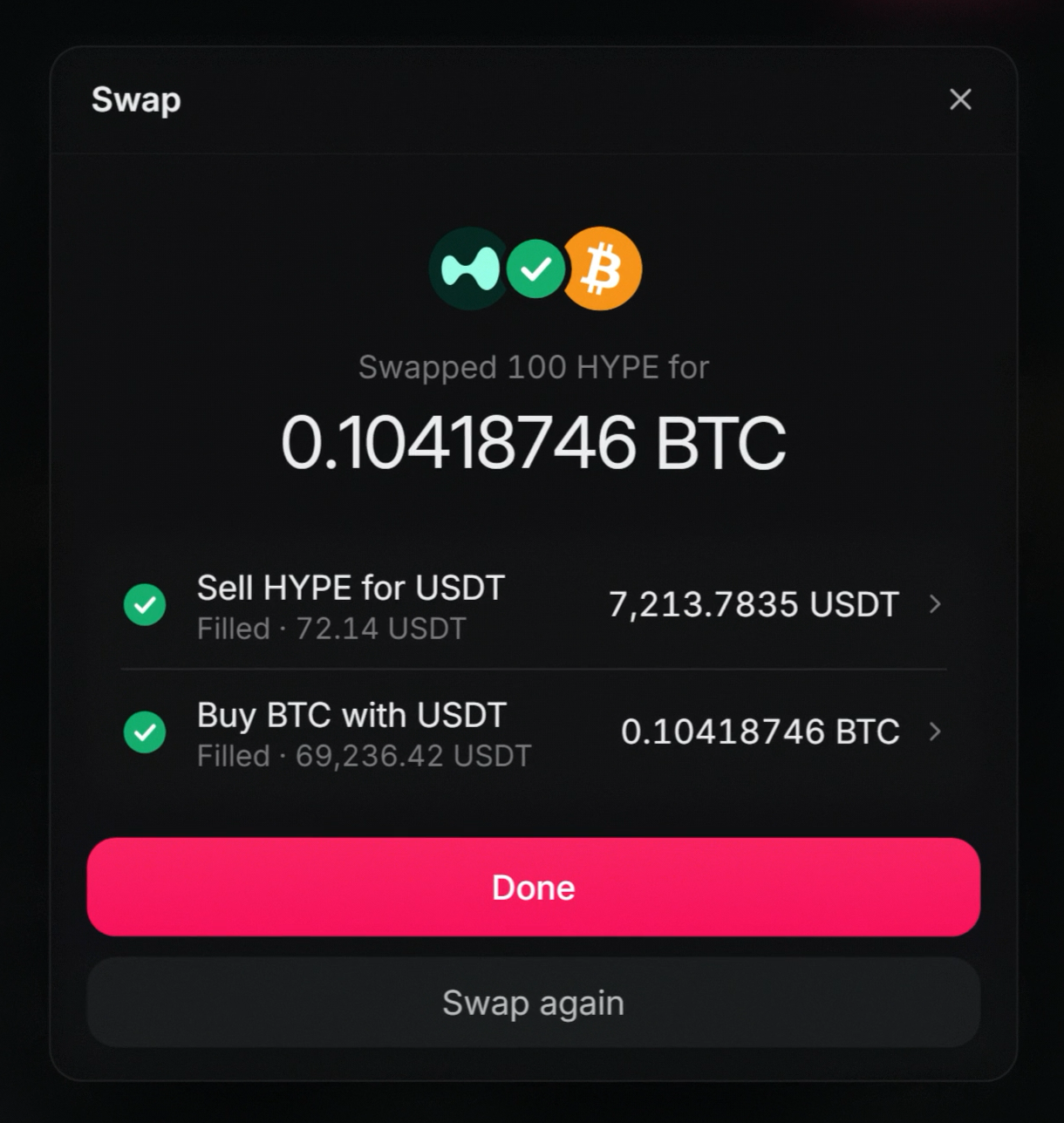 Each order shows its average fill price and what it received.
If you close the dialog while a swap runs, it keeps going, and the result arrives as a notification.
Not every swap fills completely, and Swap tells you what happened and what you can do next:
- If only part of your amount sold within your max slippage, select "Swap the rest" to try the remainder.
- In a two-order swap, if the second order can't fill, you hold the shared asset, such as USDT. Select "Continue with swap" to buy at the new price, or "Keep USDT" to stop there.
- "Partial fill behavior" sets what a two-order swap does when its first order fills only partly. "Continue" buys with what did sell. "Pause" stops and lets you choose: buy at the new price, or keep the shared asset.
- If Swap can't confirm an order, it asks you to check your order history before trying again.
Swap on Your Phone
On a phone, Swap opens as a sheet from the bottom of the screen, with the same cards, details, and results. The asset pickers open full screen with search.
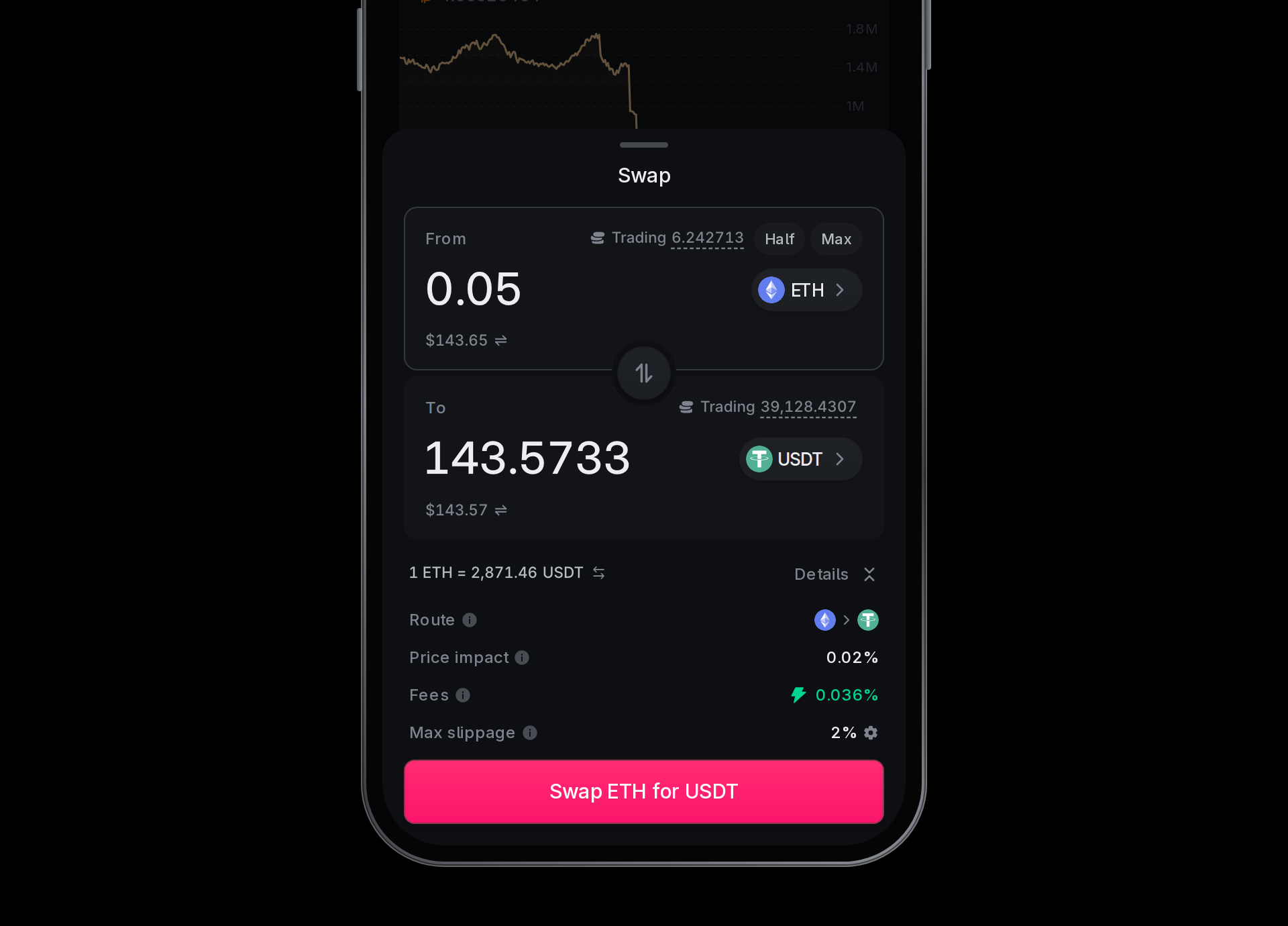 Swap opens in a bottom sheet on your phone.
Swaps in Subaccounts
Swaps follow the same permissions as any other spot order. In a Subaccount, if your role or the Subaccount's policy doesn't allow an order, or a swap would go past its max order value, the button says why. If you can edit the Subaccount's permissions, an "Edit permissions" link takes you there. Otherwise, ask its owner or an admin. See Permissions & Policies.
Open your Unified Trading Account on Polyester Testnet and select Swap to get a quote for the assets you want to exchange.