Build Your Own Trading Workspace with Custom Layouts
Rearrange, resize, and float any widget on the Polyester Testnet trade screen, start from a preset layout, and save your own arrangements to switch between them.
The trade screen on Polyester Testnet is now a workspace you arrange yourself. In the "Advanced" layout, the charts, Order Book, Order Form, and your order tables are each a widget you can move and resize. Save an arrangement under a name, such as one for chart analysis and one for order entry, and switch between your saved arrangements from the layout selector.

Read repliesCustomize your trading workspace in Polyester 📊 Rearrange widgets, create custom layouts, resize any component and make your trading workstation perfect for your setup. Try out custom layouts today, now live on Polyester Testnet!
Switch to the Advanced Layout
The trade screen has two modes, and you pick one from the "Trading Layout" dropdown in the pair header, next to the market's price and 24h stats.
"Standard" is where everyone starts. Chart, Order Book, Order Form, and your orders stay in a fixed arrangement, so you always know where each one is. You can still resize panels and expand the chart or the orders panel. If you resize panels or change the Order Book view, a "Reset Layout" button appears in the header to put it back.
"Advanced" turns the screen into a workspace you build yourself. That's where custom layouts live. Its layout tools need a browser window at least 1280 pixels wide. In a narrower window they stay hidden, so widen the window if you don't see them.
When you switch, the layout tools appear on the right of the pair header: the "Add Widget" button, the layout selector, a save button, and the "Layout Manager".
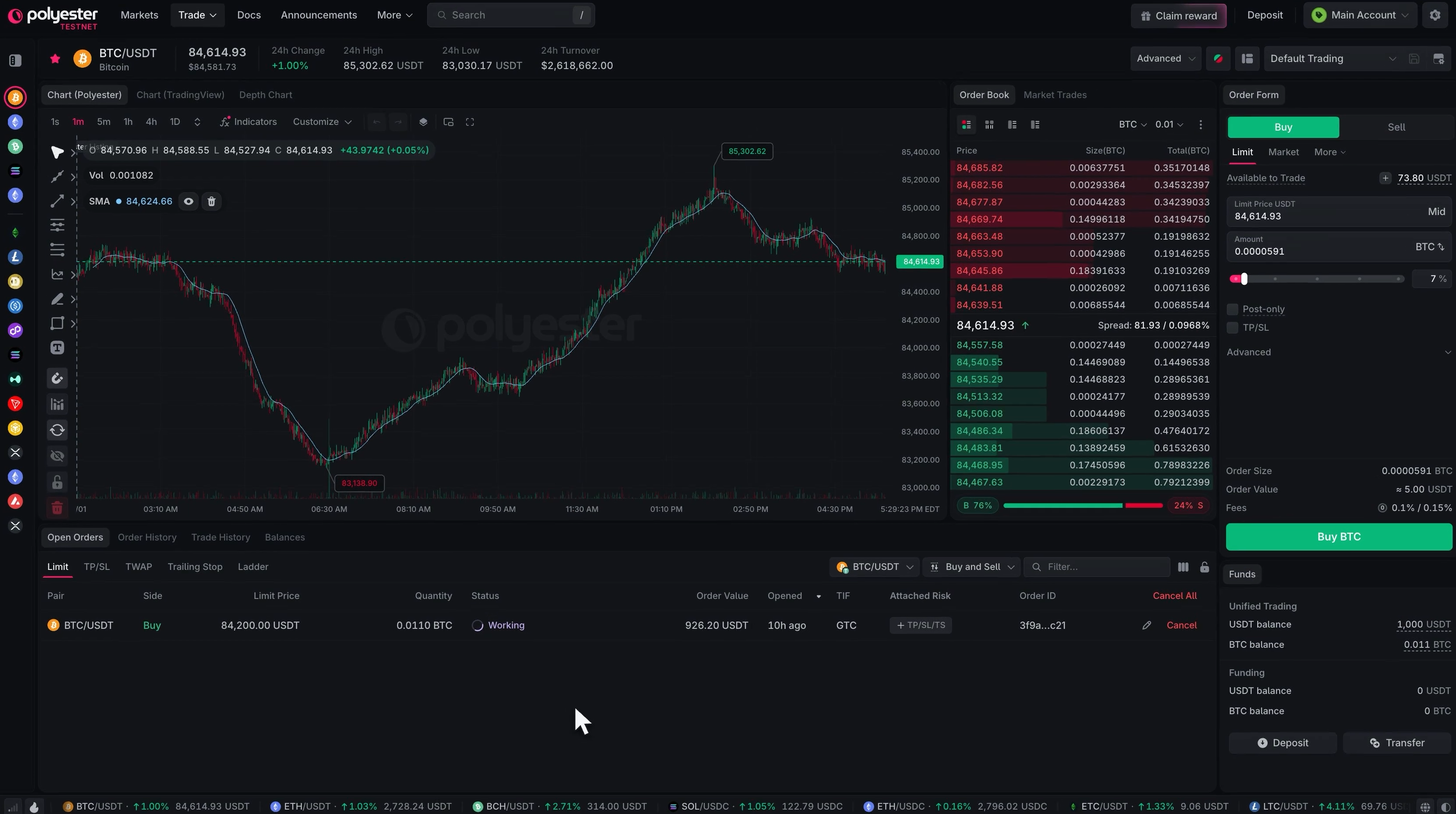 The "Default Trading" workspace in "Advanced".
Start from a Preset Layout
You don't have to build from scratch. The layout selector opens a "Preset Layouts" list with five starting arrangements:
Hover over a preset to see a preview of it before you switch, then click it to apply.
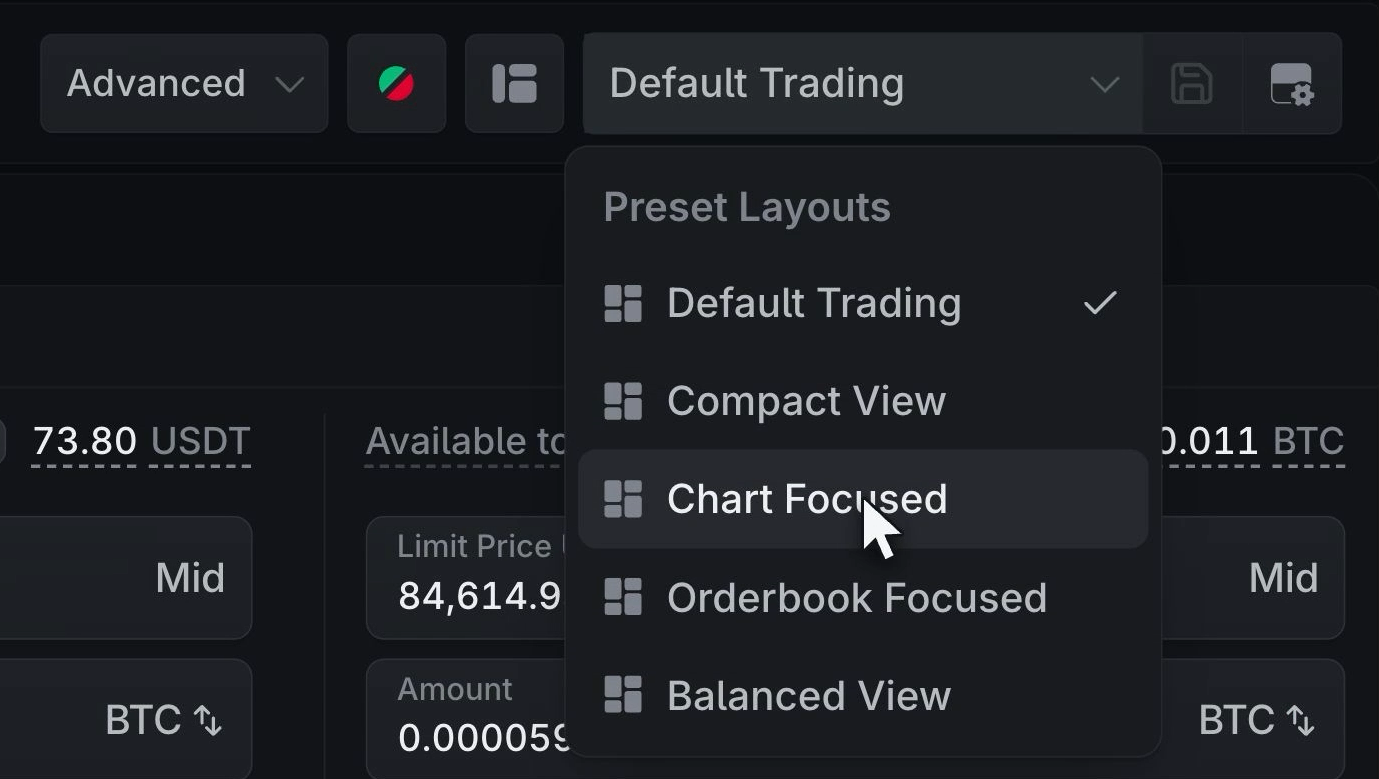 Pick a starting arrangement from "Preset Layouts".
Add, Move, and Resize Widgets
Each part of the trade screen is a widget, and you choose which ones are on screen. Click the "Add Widget" button (the grid icon) in the pair header to open the picker. Type in "Search widgets…" or browse by group: market widgets such as "Chart (Polyester)", "Chart (TradingView)", "Depth Chart", "Order Book", and "Market Trades", and trading widgets such as "Order Form", "Funds", "Open Orders", "Order History", "Trade History", and "Balances". Drag a widget from the picker to where you want it. You can also click "+" in a tab header to add a widget straight into that group.
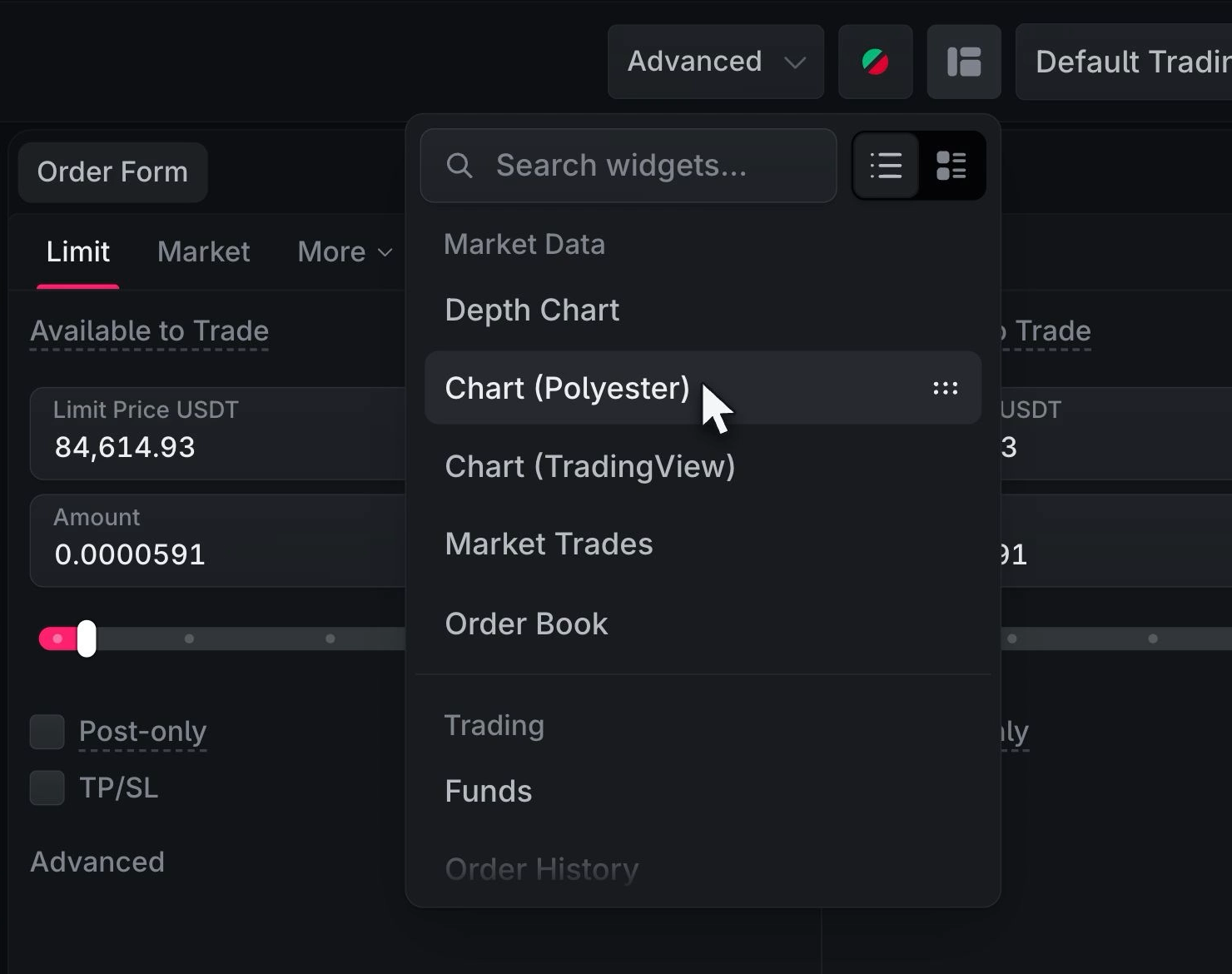 Search for a widget or pick one from the list.
Once a widget is on screen, you decide where it goes:
- Move: drag a panel or a tab to a new position. Drop a tab into another group to combine widgets as tabs, or drag it out to split them apart.
- Resize: drag the edge between two panels to change their width or height.
- Float: hover over a panel's header and click "Float panel" (or press
Shift+F) to lift the group out of the grid and place it anywhere on top. "Dock panel" puts it back. - Maximize: use "Maximize View" (or press
F) to let one group fill the workspace while you focus on it, then "Restore" it.
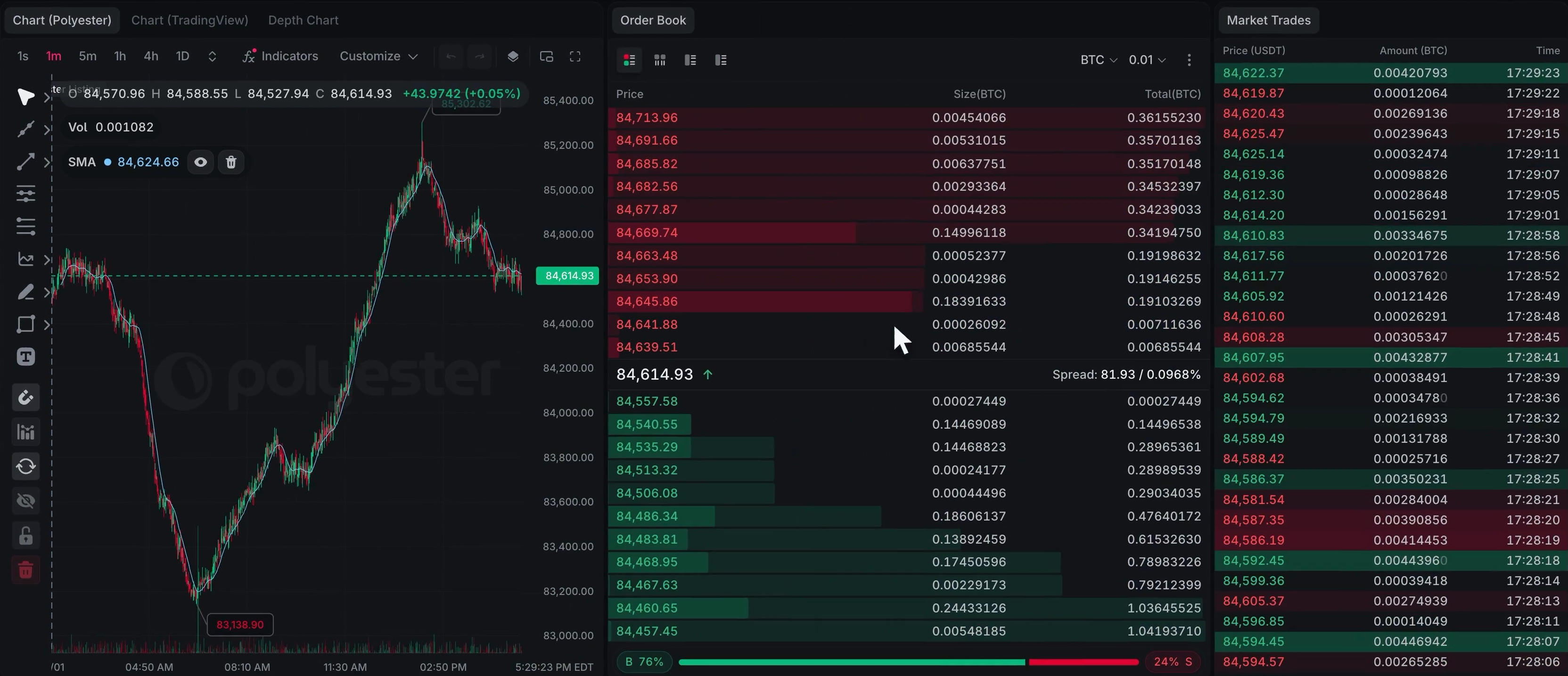 Chart, Order Book, and Market Trades side by side.
Floating works well when you want to keep a chart in view over the Order Book, or park the order entry where your mouse already is.
Save Your Layout
When the workspace looks right, save it. The save button next to the layout selector becomes active as soon as you change the arrangement. Click it to open "Save Layout", type a name in "Layout name" (up to 50 characters), and click "Save Layout".
Your saved layouts appear under "My Layouts" in the layout selector, below the presets. To switch between a chart setup and an order entry setup, open the layout selector and choose the one you want. If you adjust a saved layout later, the same button reads "Save Changes" and updates it.
Manage Your Layouts
The "Layout Manager" button opens a dialog to "Create, update or switch between different layouts". It shows every preset and every layout you've saved as a card with a preview. Click a card to apply it. On your own layouts you can update one with the current view, rename it, or delete it. "Save Current Layout" stores what's on screen now, and "Reset to Default" goes back to "Default Trading".
Good to Know
- Layouts change how the screen looks, nothing else. Moving or closing a widget never places, changes, or cancels an order.
- Saved layouts are kept in the browser you made them in. They don't follow your account to another browser or device, and clearing the site's data removes them.
- Custom layouts are a desktop feature. Phones don't show the "Trading Layout" switch, so the trade screen keeps the "Standard" arrangement, built for small screens.
Open BTC/USDT on Polyester Testnet on desktop, switch to Advanced, and save a layout with the widgets you use most.