Style Polyester with Your Own Font and Colors
Pick a Theme, a Trading Palette, and a Font in Appearance settings on Polyester Testnet, preview each one live, and switch back to the defaults at any time.
Your trading screen no longer has to look like everyone else's! Polyester now gives you more than 30 color themes for the whole interface, a choice of colors for gains and losses, and six fonts for every label and price. Each one is a couple of clicks away from any page. You pick from these built-in presets: you can't upload a font of your own or enter custom color values.

Read repliesStyle your Polyester experience with your choice of font and colors 🎨 Now your trading experience can be as unique as you make it. Try custom color themes and styles today - live on Polyester Testnet!
Where to Find Your Appearance Settings
Everything lives in one place: "Settings", then the "Appearance" tab. Open your Appearance settings on Polyester Testnet to go straight there. Its "Display Settings" card has four rows: "Mode", "Theme", "Font", and "Trading Palette".
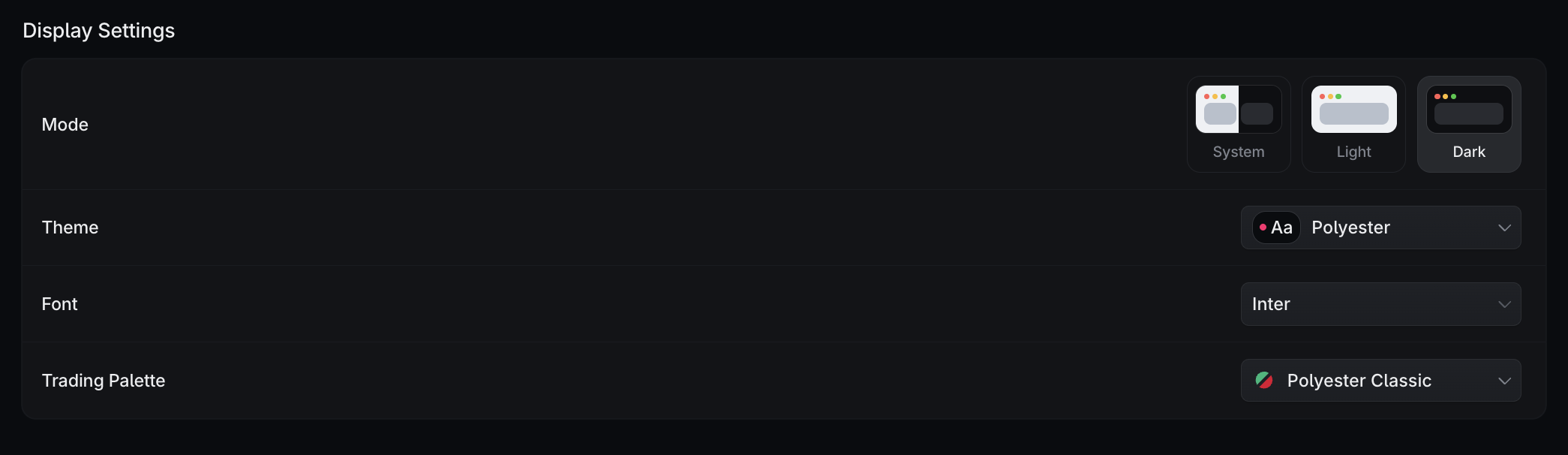 "Mode", "Theme", "Font", and "Trading Palette" sit together in one card.
You don't have to leave the screen you're on. On desktop, click the settings gear in the top nav. Its "Appearance" section has the "Mode" switch, plus "Theme", "Trading Palette", and "Font", each opening its own list. On a phone, tap the gear instead (more on that below).
Recolor the Whole Interface with a Theme
A theme changes the colors of every surface in Polyester: backgrounds, panels, buttons, and accents. There are more than 30 to choose from. They start with the default "Polyester" and its "Polyester Warm" and "Polyester Blue" variants, then run through looks such as "Midnight", "Dracula", "Terminal", and "Tokyo Night".
Type in "Search theme" to jump to one by name. On desktop, hovering a theme in the list previews it across the page straight away. Click it to keep it. If you close the list without clicking, Polyester goes back to the theme you had.
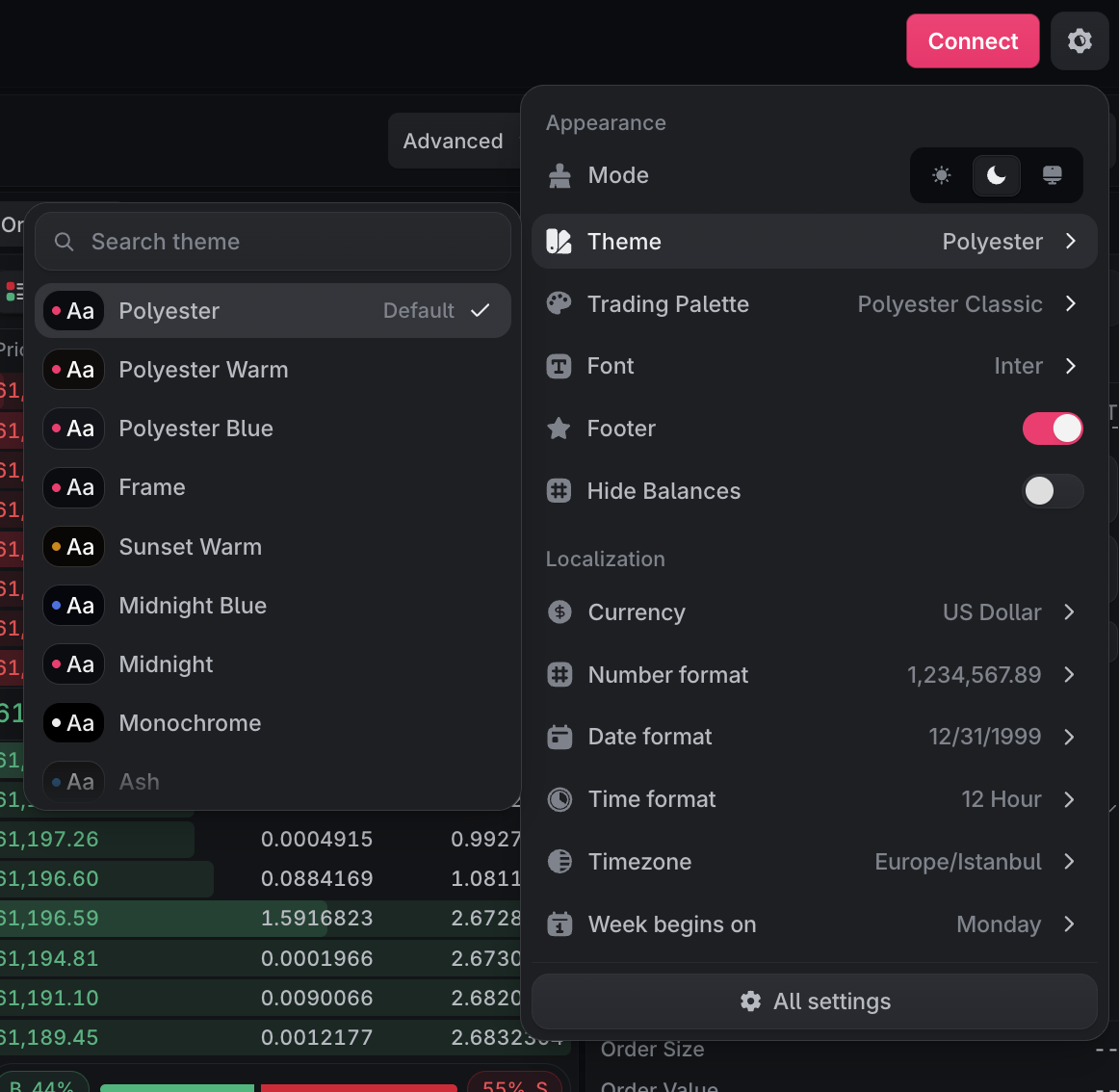 The "Theme" list opens from the settings menu, with the default "Polyester" theme selected.
Use "Mode" to choose "Light", "Dark", or "System", which follows your device setting.
Choose Your Colors for Gains and Losses
Your "Trading Palette" sets the pair of colors Polyester uses for positive and negative values: rising and falling candles, price changes, and the other market values that show a gain or a loss. "Polyester Classic", the default, uses green and red. Other palettes swap in different pairs, such as "Bull & Bear" in blue and red, "Ocean Fire" in teal and orange, "Royal Gold" in purple and yellow, or "Monochrome" in shades of gray.
That makes it easier to read the screen in colors that suit you. You can pick a pair that stands out better on your theme, or one that's easier on your eyes than red and green. Written labels and values stay the same whichever palette you use.
You can change the palette from the trade screen too. The "Trading Theme" button next to the layout selector in the pair header opens the same list. Hover a palette and the chart, the order form, and the rest of the screen redraw in its colors, so you can compare them on the market you're watching.
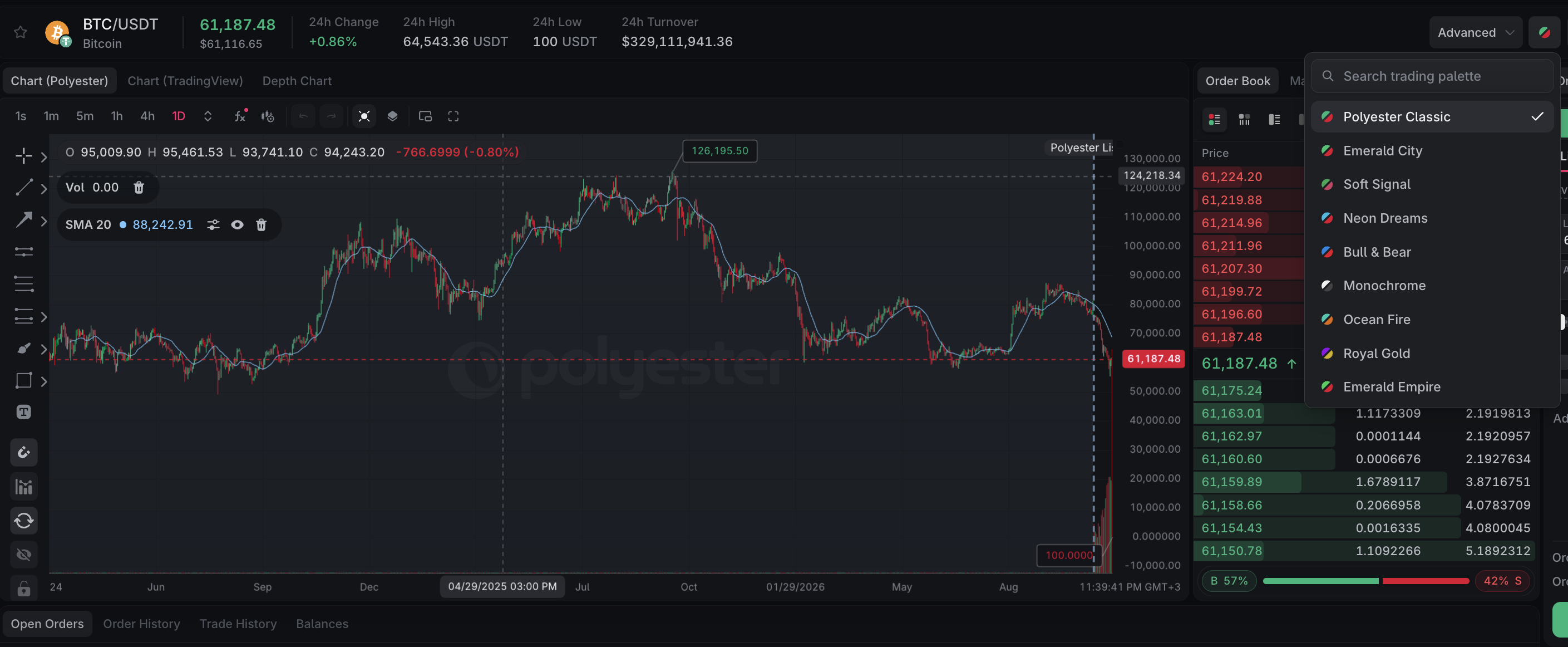 The palette dropdown on the BTC/USDT trade screen, with "Polyester Classic" selected.
Pick a Font
"Font" changes the typeface of all interface text: navigation, prices, order forms, and tables. You can choose from "Inter", "Roboto", "Oxanium", "Geist", "Mono", and "JetBrains Mono". "Inter" is the default.
Each name in the list is shown in its own typeface, so you can see what you're picking. "Mono" and "JetBrains Mono" are monospaced fonts. Every character takes the same width, which some traders prefer for reading columns of numbers.
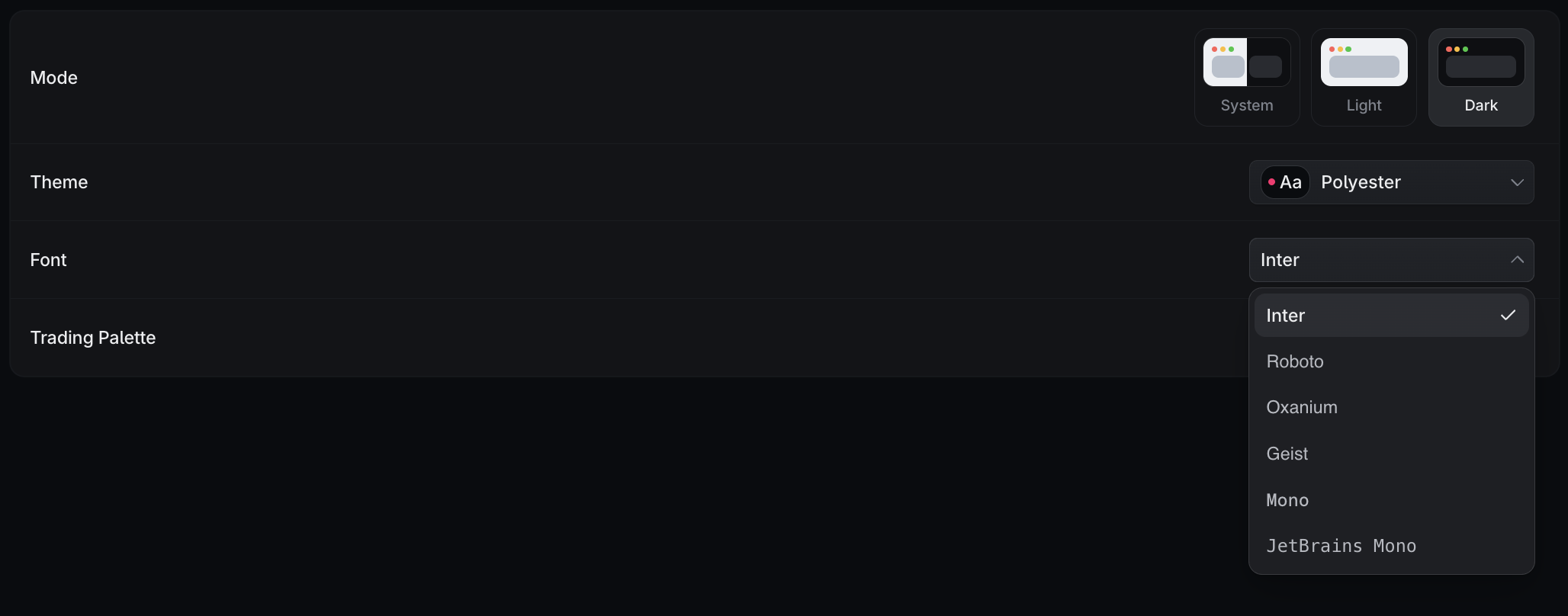 Six preset typefaces, with "Inter" as the default.
On Your Phone
Tap the settings gear in the top nav to open the "Settings" sheet. Its "Appearance" section has the "Mode" switch and rows for "Theme", "Trading Palette", and "Font", each showing your current choice. Tap a row to open its list. The list fills the sheet, the "Theme" and "Trading Palette" lists have the same search box as on desktop, and the default option is marked "Default". Tap an option to select it.
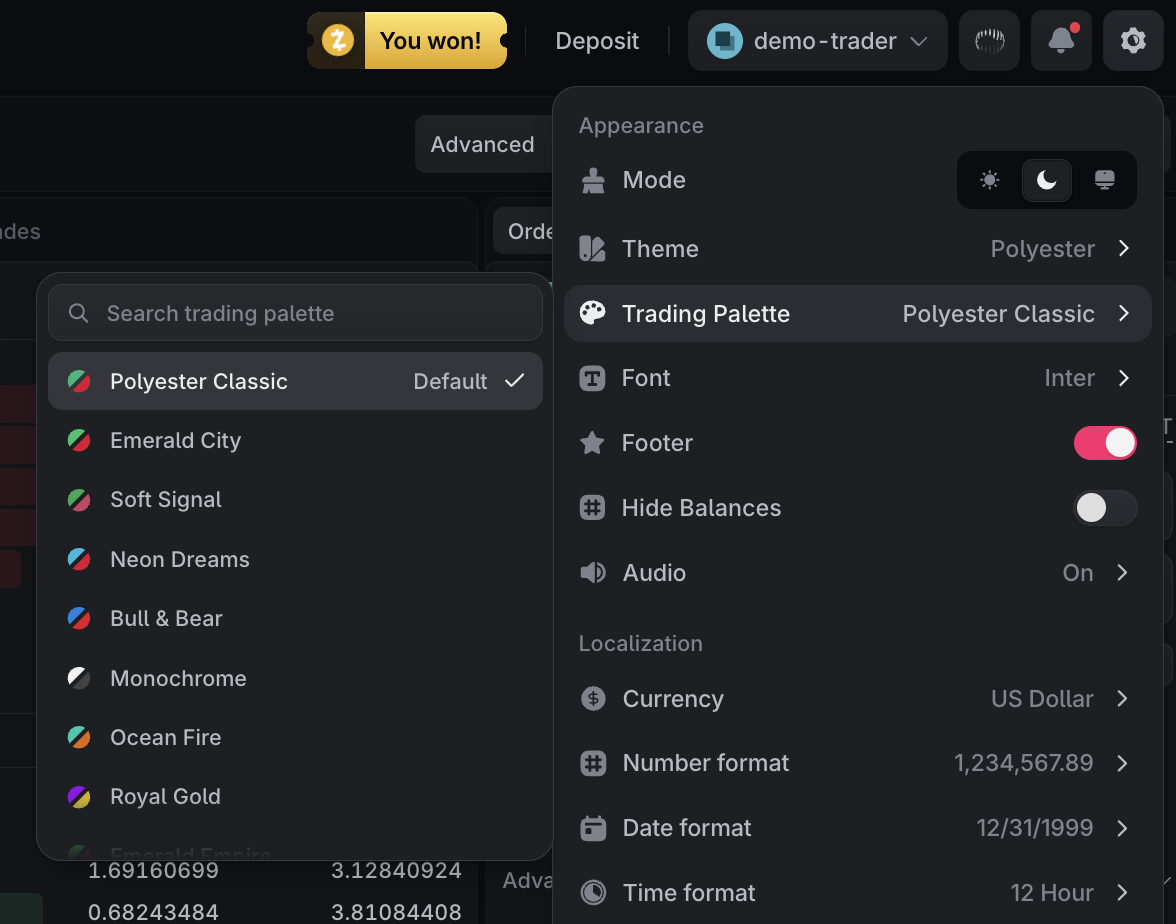 Desktop
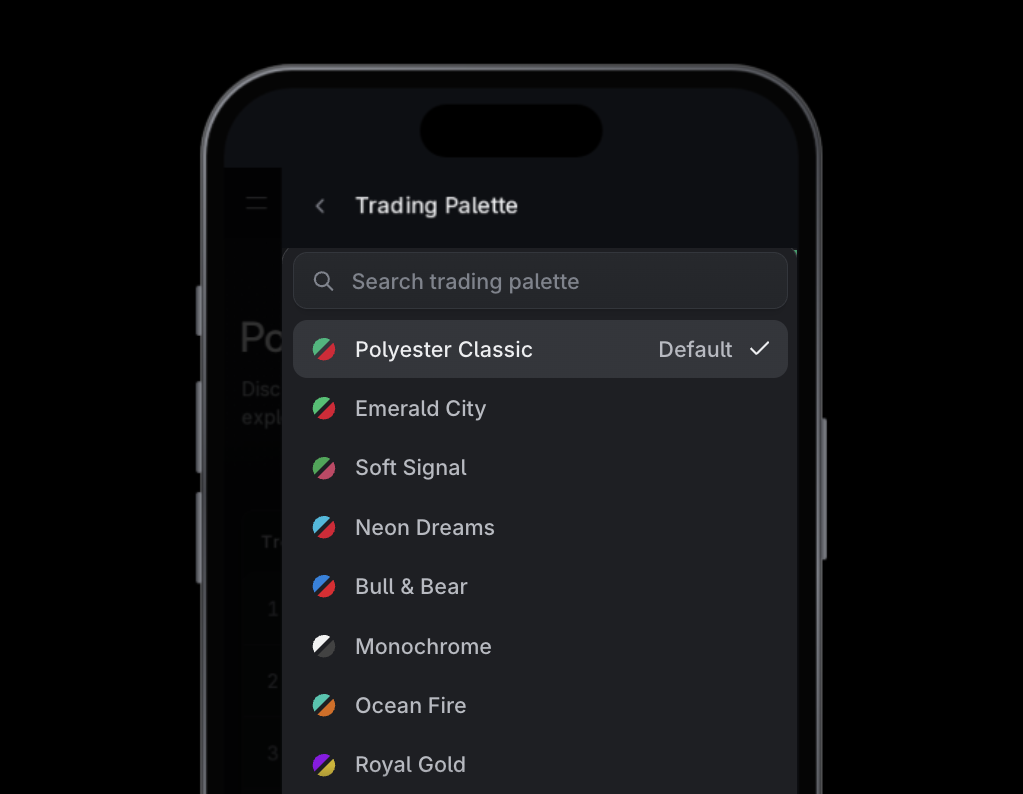 Mobile
Saving and Resetting
Your choices save automatically in the current browser and apply across all your Polyester tabs in it. Another browser or device can have its own appearance.
To start over, use the "Reset" button. It appears under the "Display Settings" card once anything differs from the defaults. Confirm in the "Reset appearance?" dialog, and your mode, theme, font, and trading palette all go back to their defaults. Choose "Keep" to leave them as they are.
Try It
Open Appearance Settings
Go to your Appearance settings on Polyester Testnet, or click the settings gear in the top nav.
Preview and Pick a Theme
Open "Theme", hover over a few to preview them, and click the one you like.
Set Your Trading Palette
Open "Trading Palette" and choose the colors you want for gains and losses.
Choose a Font
Open "Font" and select the typeface you want to read Polyester in.
For every option in detail, see the Appearance guide, then open your Appearance settings on Polyester Testnet and make it yours.