Changelogs Are Live on Polyester
See every new feature, bug fix, breaking change and improvement across Polyester, and filter the Changelog to the changes you care about. Now on Testnet.
Every release on Polyester now has its own entry in the Changelog, the record of what shipped across the exchange, the API, Quick Swap, Polyester Scan and the docs. Each entry opens with a short summary and its highlights, then lists every change in sections you can expand. Filters, search and grouping turn the Changelog into your own view, so traders, market makers and developers each see the changes that matter to them.

Read repliesChangelogs are live on Polyester. Now you can see every new feature, bug fix, breaking change and improvement across the platform. Changelog custom views and filters make it easy to track the changes you are most interested in and stay up to date. Now available on Testnet!
Find the Changelog
Open Resources in the top bar and choose Changelog, or pick the Changelog tab next to User Docs, Developer Docs, SDK and API Docs. Releases are listed newest first along a timeline, each with its date. A release starts with a summary and a Highlights list, followed by its changes grouped into sections such as Trading or Market data, each showing how many changes it holds. Expand a section to read them. Changes that developers and market makers need to act on are collected at the top under "For developers and market makers: action required". Load more brings in older releases.
Filter by Type, Area and Audience
The row under the title narrows the feed in a few clicks:
- Breaking, New, Improvements and Fixes show one or more kinds of change. Select New and Fixes together to see what was added and repaired, and skip the rest.
- Surface picks the parts of Polyester you follow: Trading, Market data, Funding, QuickSwap, AI assistant, Rewards, Accounts, API, Polyester Scan, Documentation and Platform. Choose as many as you like, or clear them with Clear surface.
- The audience switch on the right shows All, or narrows the feed to Traders, Market makers or Developers. Changes meant for every user stay in each of these views.
The search box above the filters finds releases by their title or summary.
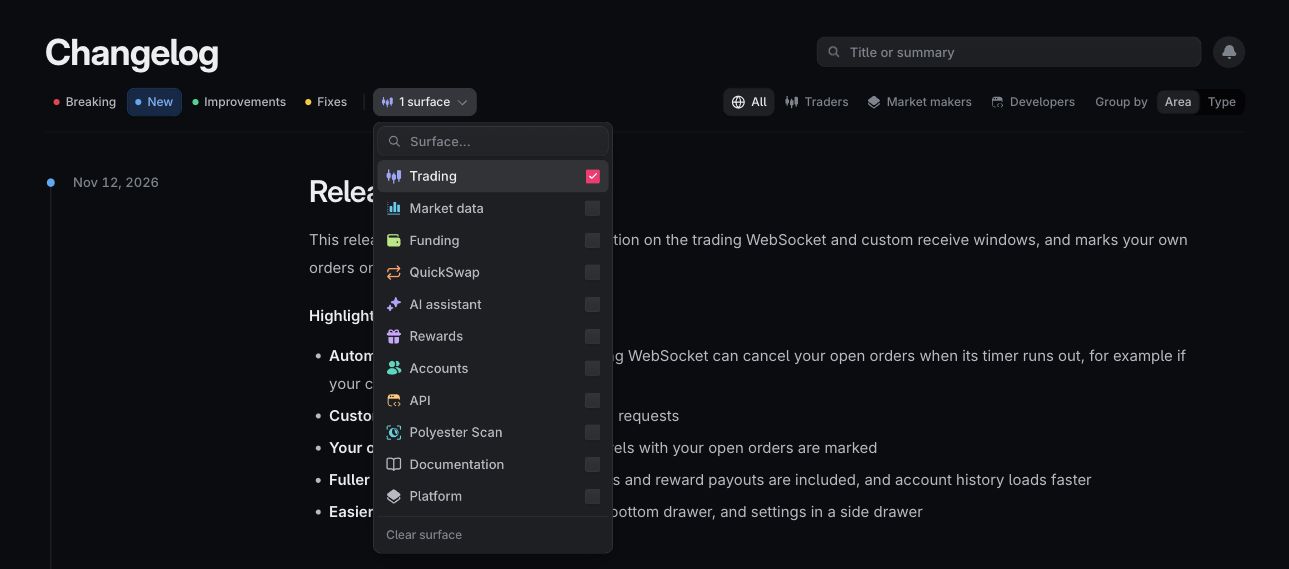 Pick a change type and the areas you follow to narrow the feed.
Group Changes by Area or Type
Group by, at the end of the filter row, decides how each release lays out its changes. Area, the default, puts them under the parts of Polyester they touch. Type sorts the same changes into Breaking changes, New features, Improvements and Bug fixes, which is the quickest way to check whether a release breaks anything you rely on before you read the rest.
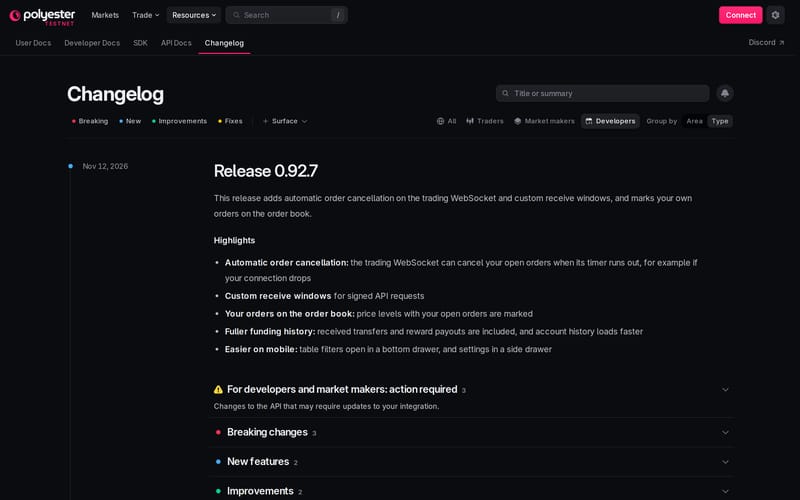 Grouped by Type, breaking changes come first.
Keep Your View
Your filters, search and Group by choice are saved in the page address as you change them. A bookmark keeps those choices, not the list of results: open it later and the Changelog applies the same filters to the latest releases, including any published since. Send the link to a teammate and they start from the same filters. A developer can keep one link to breaking API changes, and a trader another to new Trading features.
Get Updates Without Checking
The bell next to the search box opens Subscribe to changelog updates. On the RSS tab, use Copy feed URL and add the address to your favorite RSS reader. On the Slack tab, Copy Slack command copies /feed subscribe followed by the same feed URL. The /feed command belongs to Slack's RSS app, so that app has to be added to your Slack workspace first. Paste the command into the channel where you want updates, and the RSS app posts new Changelog entries there as it picks them up from the feed.
On Your Phone
The Changelog works the same on phones. The type filters stay in one row, and the audience and Surface filters open as sheets from the bottom of the screen. A saved link opens with the same filters on either screen.
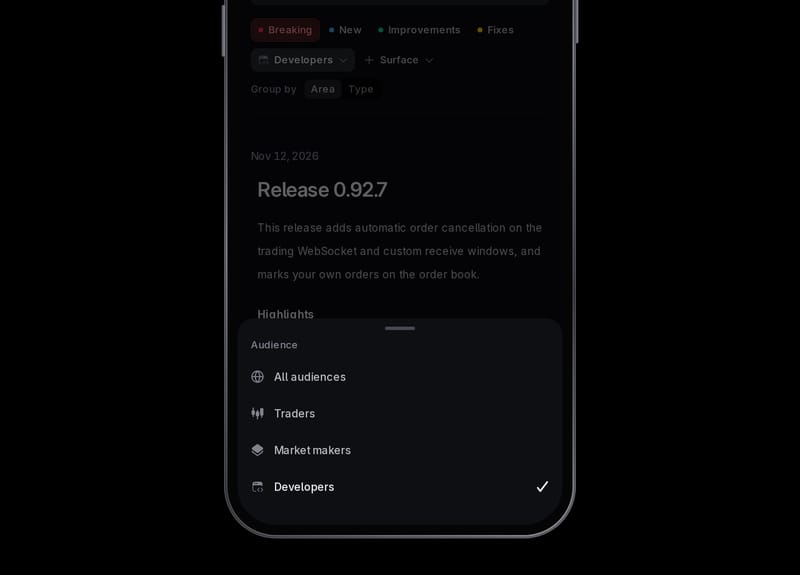 The Audience sheet: pick All audiences, Traders, Market makers or Developers.
Open the Changelog on Polyester Testnet and set up the view you want to follow.