API Keys Are Available on Polyester Testnet
Every Polyester Testnet user can now create API Keys for their Main Account or Subaccounts, with granular permissions, trading limits and activity tracking.
API Keys are now available for all users on Polyester Testnet! You can create keys for your Main Account or any of your Subaccounts and decide exactly what each one can do. Then connect a trading bot, a dashboard, or your own scripts without handing over full control of your account.

Read repliesAPI Keys are available for all users on Polyester Testnet! Create API Keys on your Main Account or Subaccounts, give them granular permissions, trading limits, and track activity. Creating keys takes seconds, and you can test them using Polyester's API Playground.
Create a Key in Seconds
You'll find “API Keys” in the Account menu, at API Keys. Select “Create API Key” and fill in a short form:
- Account: the account the key represents. Requests made with the key act as this account. You only see this field when you have Subaccounts you're allowed to create keys on.
- Label: a name that helps you identify the key later, such as "Trading Bot" or "Read-only Access", up to 64 characters.
- Keypair: choose “Generate in browser” to have Polyester create a private and public key for you, or “Bring your own key” to paste a public key you already have.
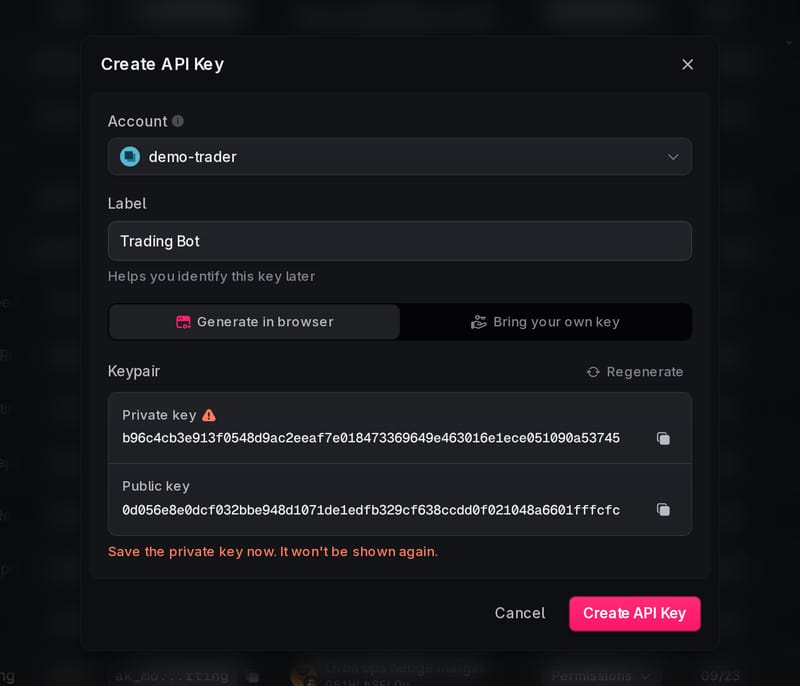 Generate a keypair in your browser or bring your own public key.
When you generate the keypair in your browser, copy the private key before you continue. It won't be shown again. Polyester keeps only the public key, so the private key stays with you. If you want a new pair before you save, select “Regenerate”.
After you select “Create API Key”, the dialog confirms “API key created” and shows the new “Key ID”, with an “API Docs” link.
Keys for Your Main Account and Subaccounts
Each key belongs to one account. A Main Account key acts as your Main Account. A Subaccount key acts only as that Subaccount and can't read Main Account data such as your VIP status, profile, rewards or checkpoints. This lets you give a strategy its own key on its own Subaccount, separate from the rest of your funds.
You can also create keys from a Subaccount directly: open it under “Subaccounts” and go to its “API Keys” tab, which lists only that Subaccount's keys. Subaccount members whose role doesn't allow managing API keys can't see or create keys there.
Granular Permissions and Trading Limits
Open any key to see its “API Key Details” page. Under “API Key Permissions”, you set each permission separately to “None”, “Read” or “Write”, depending on which levels it offers (“Balances”, for example, is “None” or “Read”, and “External Withdrawals” is “None” or “Write”):
- Trading: “Spot Trading” controls whether the key can place and manage spot orders. Under “Advanced”, “Spot Market Scope” limits it to “All Markets” or a “Custom Whitelist”, where only the “Allowed Pairs” you choose can be traded.
- Equity Settings: “Balances”, “Outgoing Internal Transfers” between Polyester accounts, and “External Withdrawals” to external wallets.
- Security: the “Address Book” of saved withdrawal destinations, and an “IP whitelist”. Add the IP addresses or CIDR ranges your servers use with “Add IP / CIDR”, and the key only works from those. With no entries, the key can be used from any IP address.
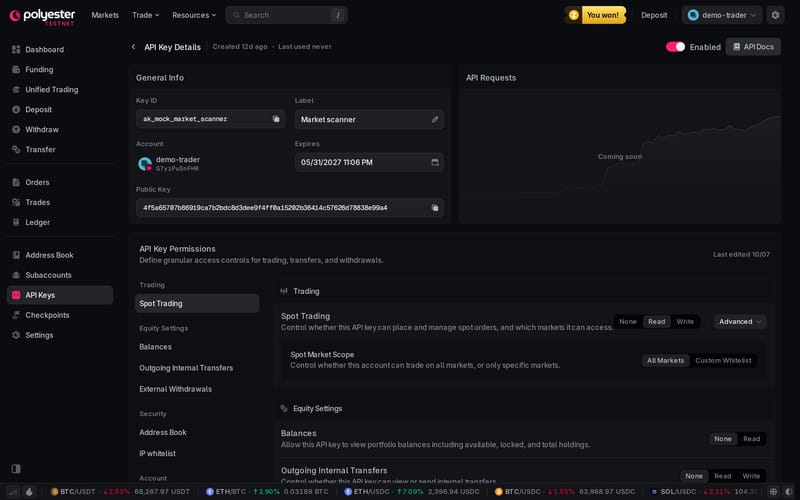 Set each permission to an available access level and limit trading to the markets you choose.
A read-only key for a portfolio tracker might only need “Balances” set to “Read”. A trading bot could have “Spot Trading” set to “Write” on a “Custom Whitelist” of the pairs it trades, with withdrawals left off.
Track and Control Every Key
The API Keys list shows each key's account, permissions, when it was created, when it was last used (or “Never”), and its status. Filter by “Active”, “Disabled” or “Revoked”, or search with “Filter API keys”.
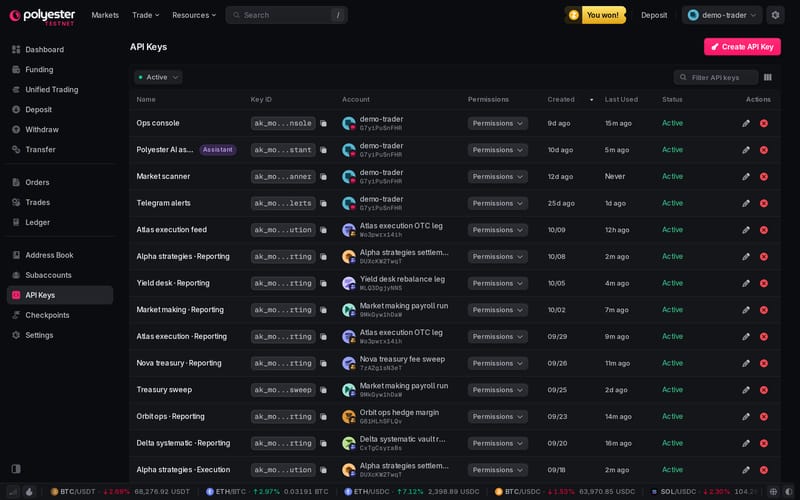 See every key's account, last use and status in one list.
On a key's details page you can rename it, set an expiry date under “Expires” (or keep “No Expiration”), and turn it off with the “Enabled” switch. Disabling a key stops apps from using it until you enable it again. Revoking a key is permanent: apps using it lose access, and it can't be undone.
Test Your Key in the API Playground
Once your key is ready, try it in Polyester's API Playground. It lets you explore the Polyester API and send authenticated REST, WebSocket and gRPC calls, so you can check your key and its permissions before you write any code. The “API Docs” button on every key's details page takes you there.
Open API Keys
Sign in to Polyester Testnet and go to API Keys.
Create a Key
Select “Create API Key”, choose the account, add a label, and save your private key.
Set Its Permissions
Open the key and give it only the access it needs.
Try It
Send your first request in the API Playground.
Create your first key on API Keys and start building on Polyester Testnet.