Checkpoint 2: Your Trading Recap and Shareable Card
See how much you traded during Deployment 2 and download your personalized Checkpoint 2 card.
Checkpoint 2 covers November 5–27 on Polyester Testnet. Your recap shows which markets you traded most, when you were most active, and the highest VIP tier you reached.
What a Checkpoint Is
A Checkpoint records your Testnet progress at the end of each Deployment: your trading statistics, your equity and your VIP tier, across your Main Account and all your Subaccounts.
When a new Deployment begins, your Paper Asset balances, trading volume and VIP tier reset. Your account, Subaccounts, API Keys and settings stay as they are, and every Checkpoint you've earned is kept. The Checkpoint 2 date announcement lists what the snapshot recorded and what carried over, and the first Checkpoint announcement explains how Checkpoints started.
Your Checkpoints are private and only visible to you. You decide what to share.
Look Back on Checkpoint 2
Open Checkpoints from the Account section of the sidebar. The page opens on your newest Checkpoint, with its date range beside its title. Select "View full recap" to open the story of your Deployment 2.
The recap opens with your total trading volume during Deployment 2, followed by the markets you traded, how many days you were active, and the trades and orders behind it. Scroll down to see the rest in numbered sections. On a wide screen, the "In this recap" list beside them shows where you are and lets you jump to any section.
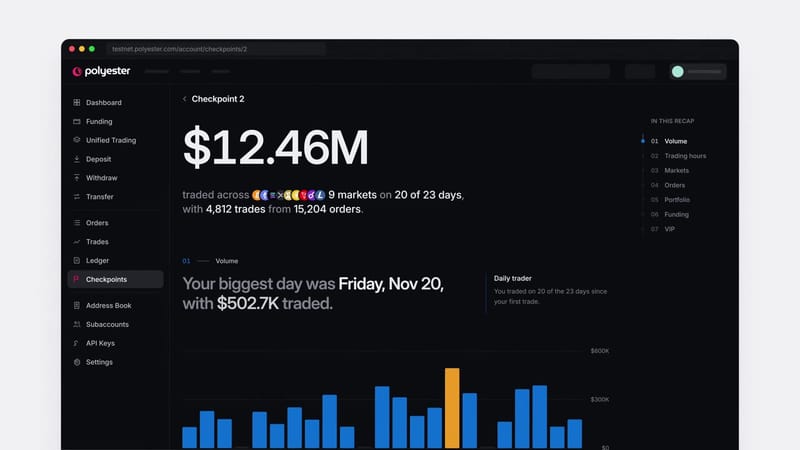 The Volume chapter in the official Checkpoint 2 walkthrough.
Each section opens with a sentence about your own numbers and, when there's activity behind it, a trait that reflects how you traded, with the reason you earned it.
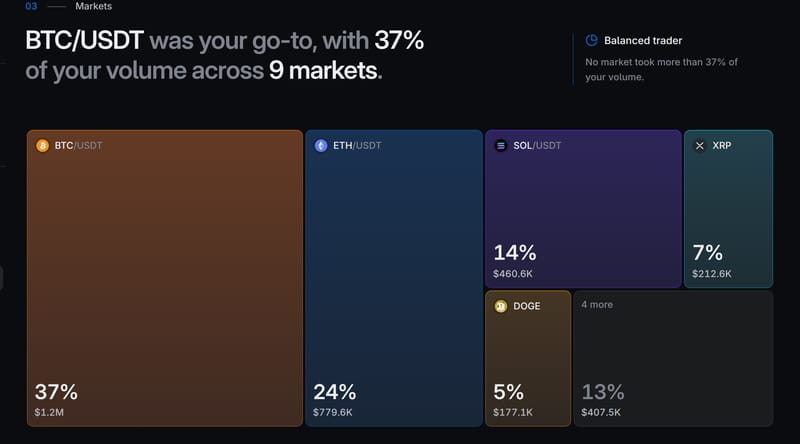 Each section sums up your activity with a chart and, when it applies, a trait. Figures are from a demo account.
Testnet tokens such as tBTC have no price, so they are listed by amount and left out of every USD total. A figure marked with ≈ was estimated from partial data, and the figures in your recap are final.
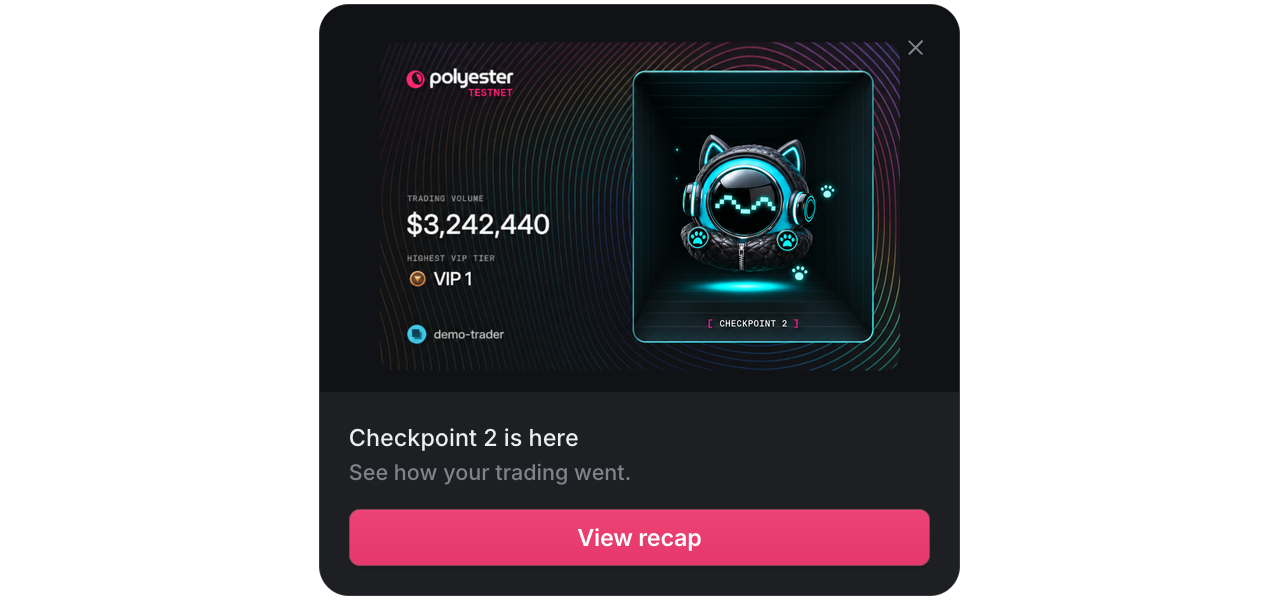
There's also a shortcut. For a week after Checkpoint 2, a "Checkpoint 2 is here" notice appears in the corner when you're signed in to Polyester Testnet, with a picture of your card. Select "View recap" to go straight to your recap. If you close the notice or have already opened the recap, it doesn't come back.
Your Checkpoint Card
Every Checkpoint comes with a Checkpoint Card, a 3D card with a Polyester character of your choice in its window. Your Checkpoint 2 card shows your trading volume and highest VIP tier for Deployment 2, with ‘Checkpoint 2’ beneath your chosen character. Select ‘Flip’ to see your Trading Account equity at the checkpoint and the date you joined Polyester. Both sides show your avatar and username, and amounts are in USD so anyone you share the card with can read them. The VIP tiers guide explains the tiers your card tracks.
Under "All checkpoints", each Checkpoint appears as a small copy of its card with its dates. Select one to view it; the card you're looking at is marked "Viewing". The Checkpoint 1 trading recap covers your first card.
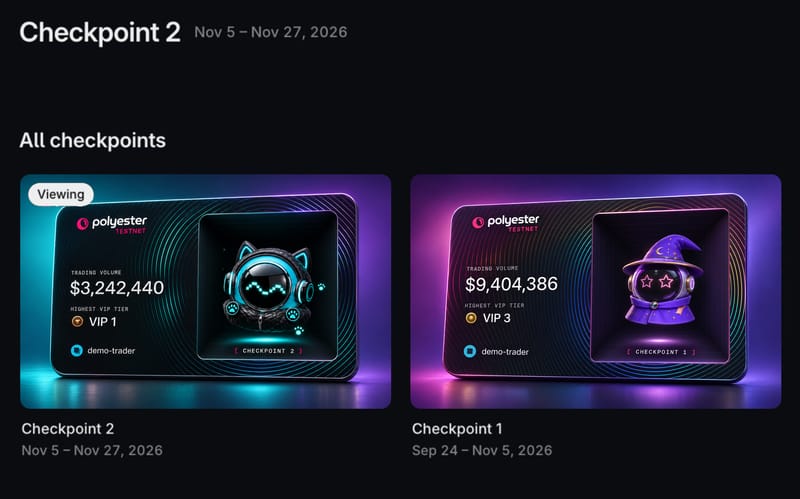 Two example card designs. On the Checkpoints page, your selected character and finish apply to every card on this device.
Make It Yours
Next to the card, a panel lets you change how it looks:
- "Character": the Polyester bot inside the card's window.
- "Finish": "Hologram" (contour rings under the card's surface and foil on the logo) or "Aluminium" (brushed metal with smoked glass in the window).
- "Theme": "Dark" or "Light" changes the card itself.
- "Background": changes the area around the card. Choose "No background" (the dash) or one of four swatches: grayscale, green fading into teal and blue, deep blue-violet, or pale yellow-green fading into forest green.
The character picker lists, in order: Pink, Wizard, Aviator, King, Samurai, Cloud, Explorer, Bow, Skater, Ski, Evil, Astronaut, Bucket, Farmer, Shades, Snowboard, Moss, Cat and Tuxedo.
The card updates as you choose. You only need to choose your look once on a device: it applies to every card on the page, including Checkpoint 1, and it's the look you preview and export in the card studio. To match the example below, pick "Cat", "Hologram", "Dark" and the green-to-teal swatch.
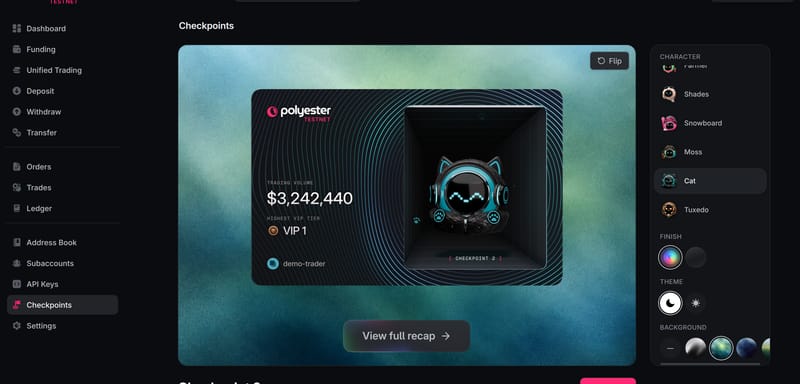 Pick a character, finish, theme and background. Figures are from a demo account.
Share It as a Video
Select "Share" under the card, or at the end of your recap. The card studio opens full screen with a preview of exactly what you'll export: a short video loop of your card moving, with one bar of controls at the bottom.
First pick a motion: "Dwell spin", "Spring flip", "Turntable", "Slow reveal", "Hand tilt", "Tumble", "Snap", "Swing", "Bounce flip" or "Double take". The preview plays the loop with a timeline, so you can pause it and scrub through.
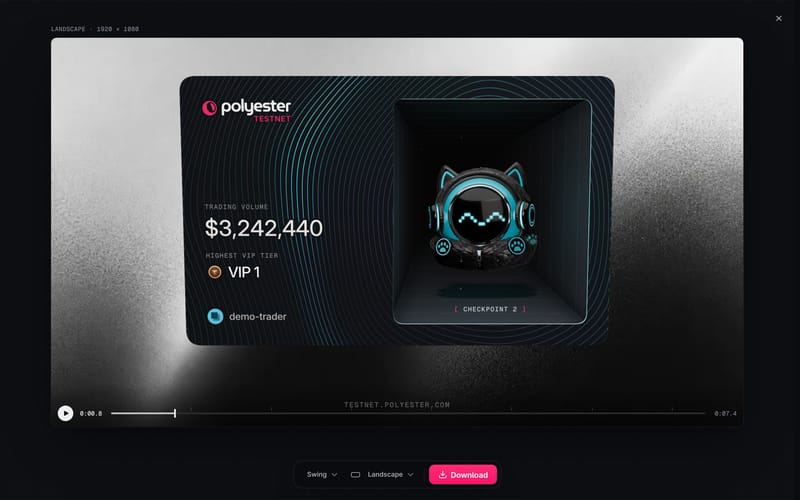 The preview shows exactly what the video will be. Figures are from a demo account.
Then pick a size to fit where you're posting:
Every video has testnet.polyester.com printed under the card, so people who see it know where to find Polyester.
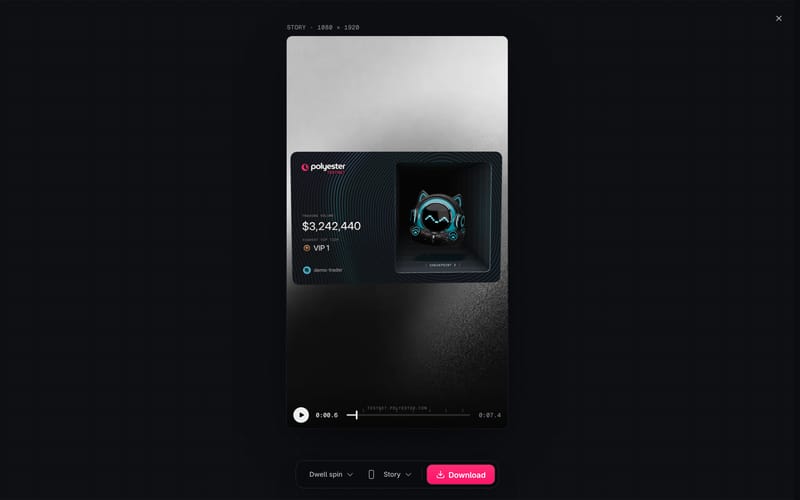 The preview takes the shape of the size you pick. Figures are from a demo account.
Select "Download" to save the video. If your browser supports sharing files, select "Share" to open the system share sheet and send it straight to an app. On a wide screen, both buttons can be there side by side.
Sharing a card reveals only what's shown in the video: your username, avatar and the figures on the card. Your full recap stays private.
To share your card with the community, reply with it to Polyester’s Checkpoint 2 post on X.

Read repliesPolyester Checkpoint 2 has arrived. Just as before, log in to your Polyester Testnet account and click "Checkpoints" in the sidebar to view your stats. You can also download and share your personalized Checkpoint card. Comment and share your Checkpoint 2 cards below!
On Your Phone
Checkpoints work on phones too. Your card sits at the top, with its title and dates, "View full recap" and "Share" right under it. Below them, the "Customize card" panel holds the same "Character", "Background", "Finish" and "Theme" choices. The recap's sections and charts stack into a single column, and the card studio fits its controls into a bar at the bottom of the screen. The "Story" size is made for vertical posts and stories.
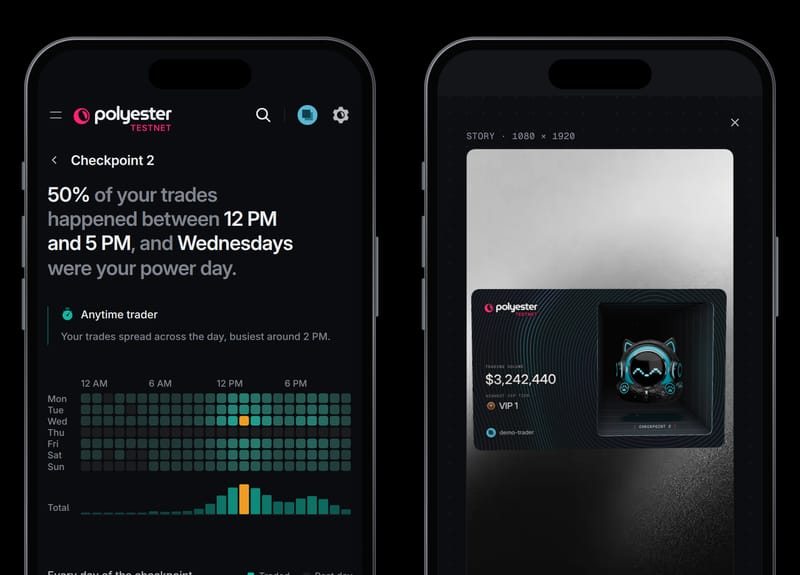 See when you traded and export your card as a "Story" from your phone. Figures are from a demo account.